
Settings and performance
Open Settings with the gear in the player panel (bottom left), or press Esc (Back on Android) and choose Settings in the Game Menu. This page explains every category, then the fixes that help most when the game runs slowly.
What each category does
Section titled “What each category does”General
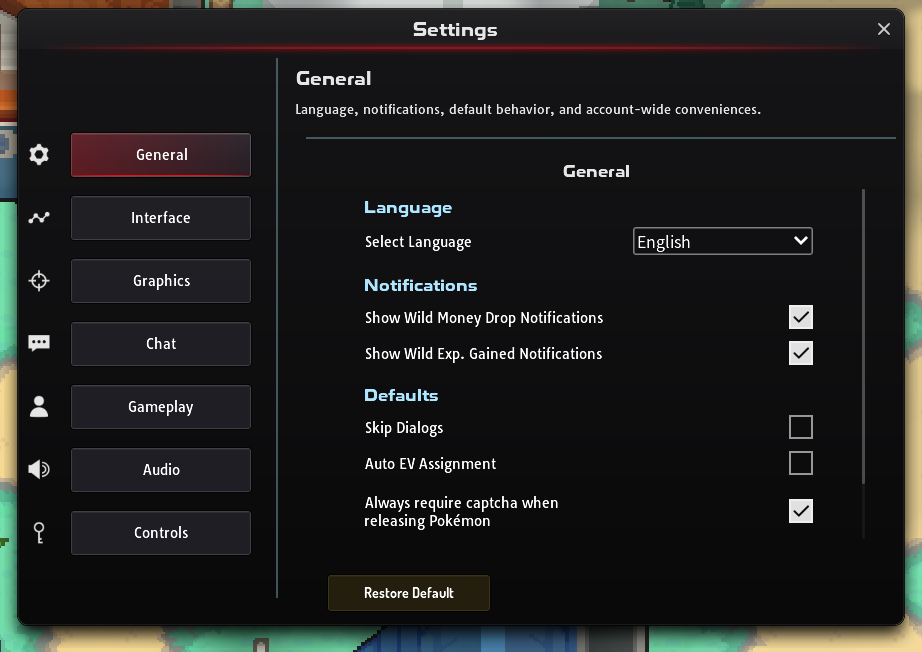
Section titled “General”- Language: English, Español, Português, Deutsch or 中文.
- Mobile (phones and tablets only): Mobile Controls lets you move with gestures, an on-screen touchpad, or both. Hide UI While Moving clears the screen while you walk.
- Notifications: Show Wild Money Drop Notifications and Show Wild Exp. Gained Notifications turn those chat messages on or off.
- Defaults: Skip Dialogs, Auto EV Assignment (see EV training), and Always require captcha when releasing Pokémon. Shiny and Ultra Rare Pokémon always need the code; this setting adds it for every other release too.
Interface
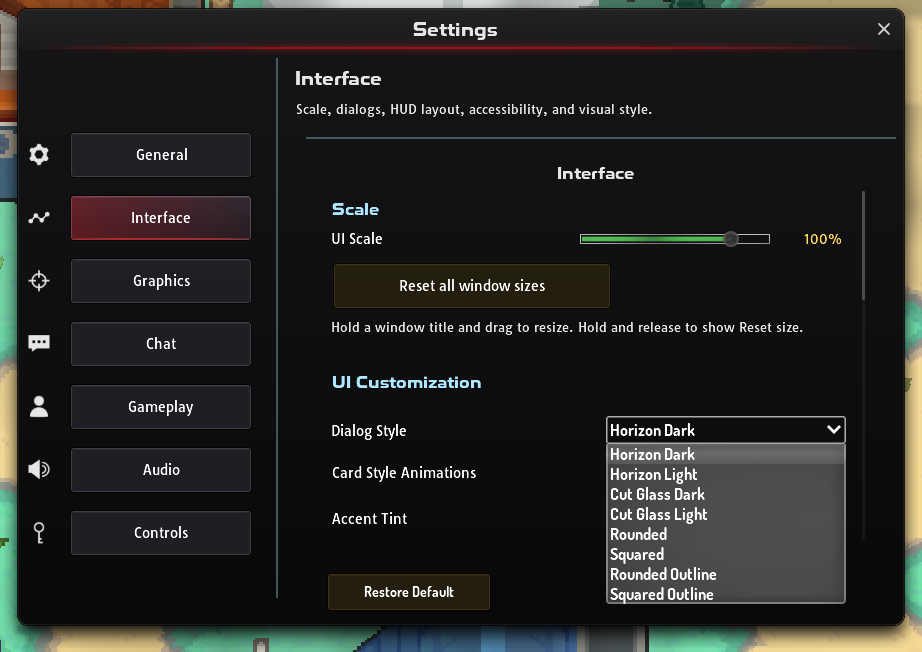
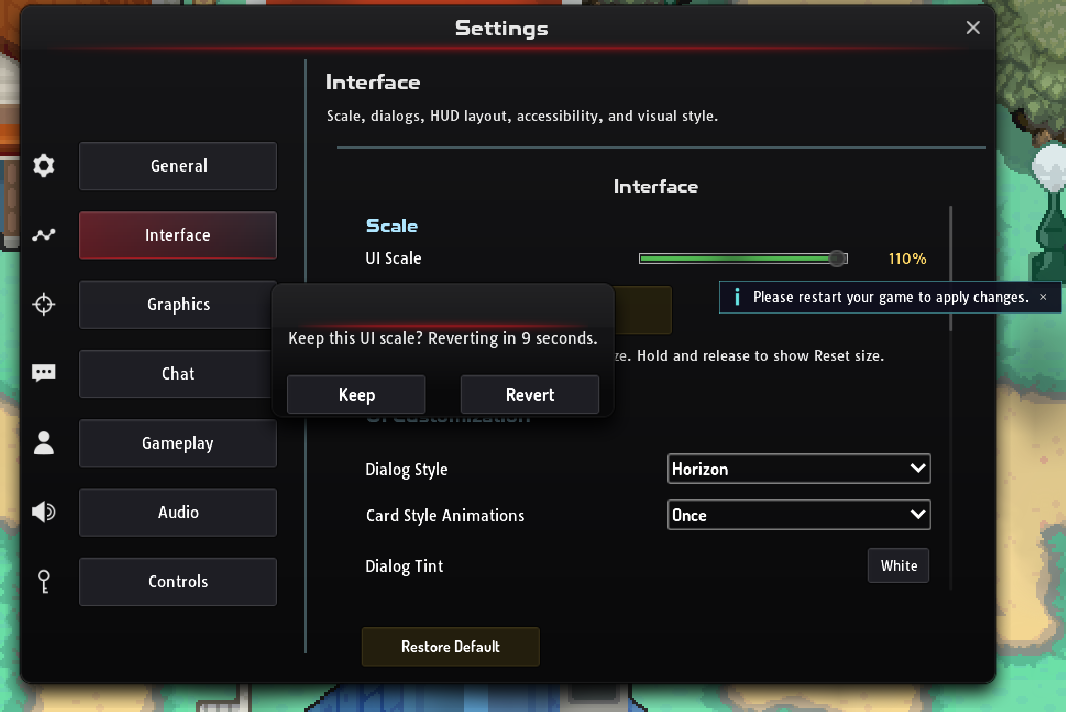
Section titled “Interface”- UI Scale makes every window and button bigger or smaller. After you apply a new scale, the game asks you to keep it and switches back on its own after 10 seconds if you don’t answer, so you can’t lock yourself out.
- Reset all window sizes: many windows can be resized by holding their title and dragging. This puts them all back to normal.
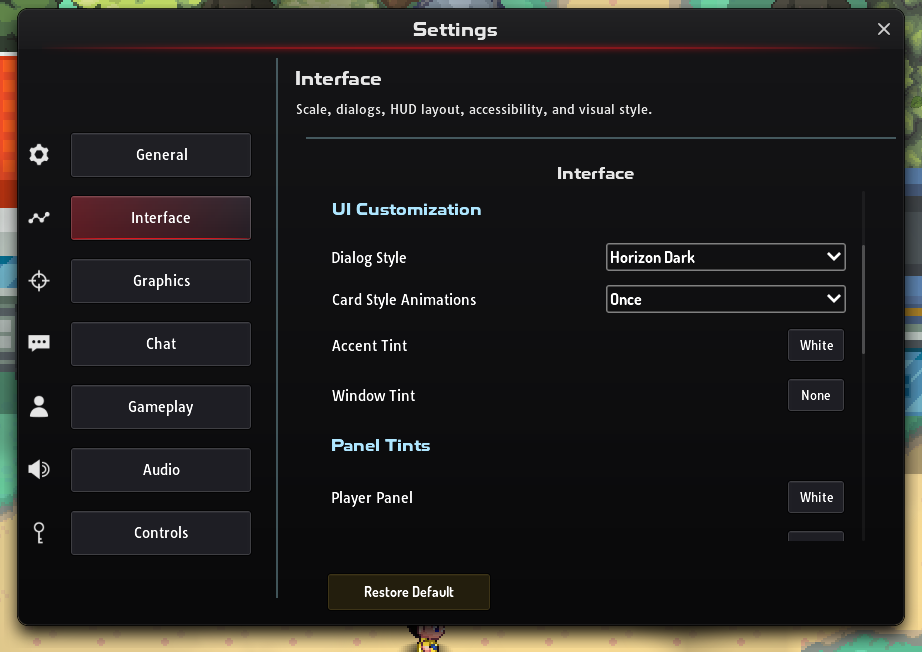
- UI Customization: Dialog Style and its colors (see below), Card Style Animations (Once lets an animated Pokémon card style play its animation once, Off keeps cards still), and Panel Tints for each HUD panel.
- Panel Management: Enable Draggable Panels to move HUD panels, Reset Panel Positions, and Export or Import to share your colors as text.
- Accessibility: Color Vision Mode with options for deuteranopia, protanopia and tritanopia, plus high and low contrast.
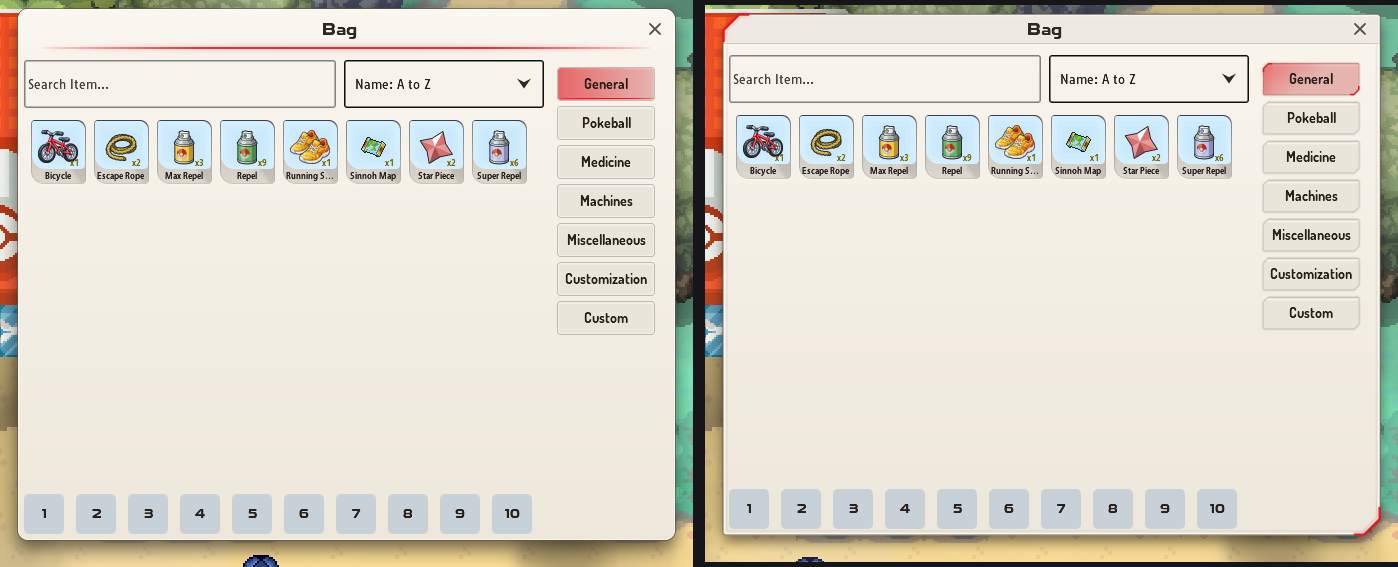
Dialog Style sets the look of most windows in the game, including PC Storage, the Pokédex, Game Pass and the evolution window. Horizon Dark is the default.
| Dialog Style | Look |
|---|---|
| Horizon Dark (default) | Black lacquer with a glowing horizon line |
| Horizon Light | Horizon’s shape and line on warm ivory paper, with dark text |
| Cut Glass Dark | Smoky glass with cut corners and a double hairline, with colored brackets in the corners |
| Cut Glass Light | Cut Glass on the same ivory paper, its cuts and hairlines in dark ink |
| Rounded and Squared | The older plain window, with round or square corners |
| Rounded Outline and Squared Outline | The same older windows with an outline |
On the two light styles, the words in a window turn dark, and colored words are darkened so they stay readable on the paper. The light styles don’t change the HUD, battle windows or Pokémon card styles.
The color rows under Dialog Style depend on the style you pick:
- Accent Tint (Horizon and Cut Glass, Dark and Light): colors Horizon’s line, Cut Glass’s corner brackets and the red parts of windows, such as the main buttons, selected tabs and highlights. It is red until you pick a color.
- Window Tint (the same four styles): colors the window itself at its own lightness, so the words stay as easy to read. It starts at None; pick white to go back to None. On the older styles this row is grayed out.
- Dialog Tint (Rounded, Squared and their Outline versions): takes the place of Accent Tint and tints the whole window.
If you were using Rounded, the old default, the game moved you to Horizon Dark once. Pick Rounded again in Dialog Style if you prefer it.
Graphics
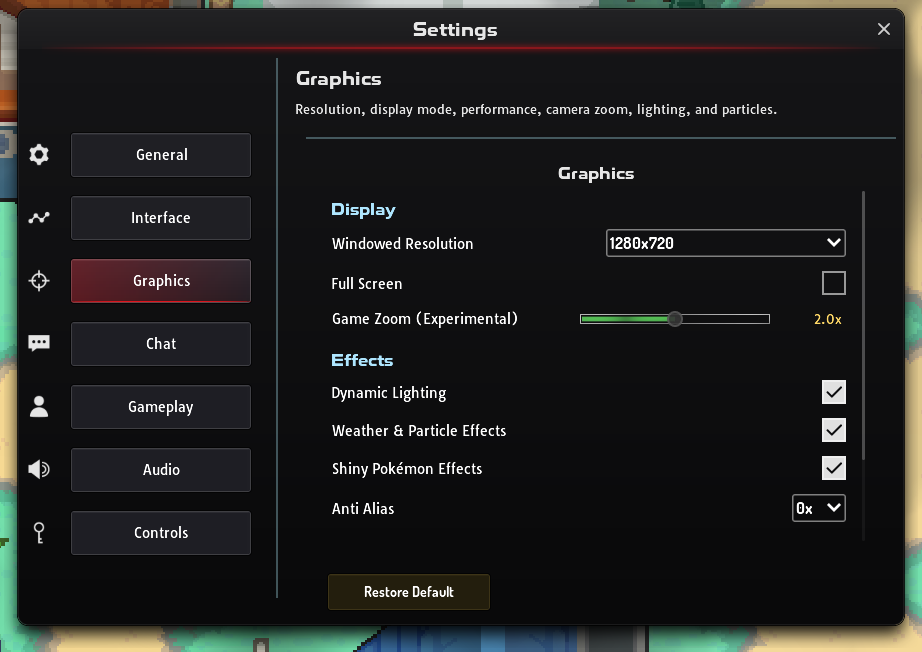
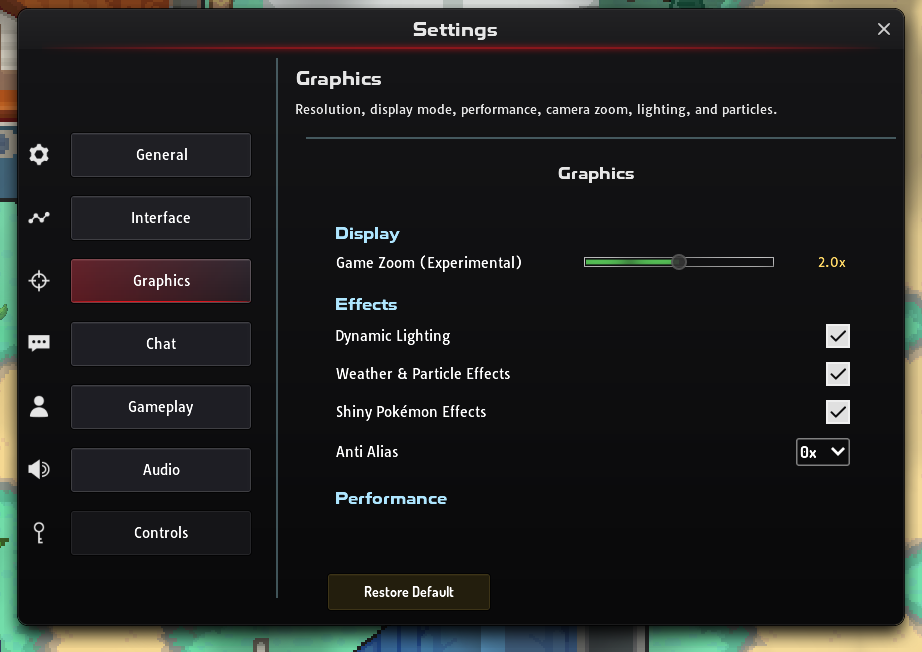
Section titled “Graphics”- Display: Windowed Resolution and Full Screen (where your device allows them), and Game Zoom (Experimental), which zooms the world in from 1.0× to 3.0×.
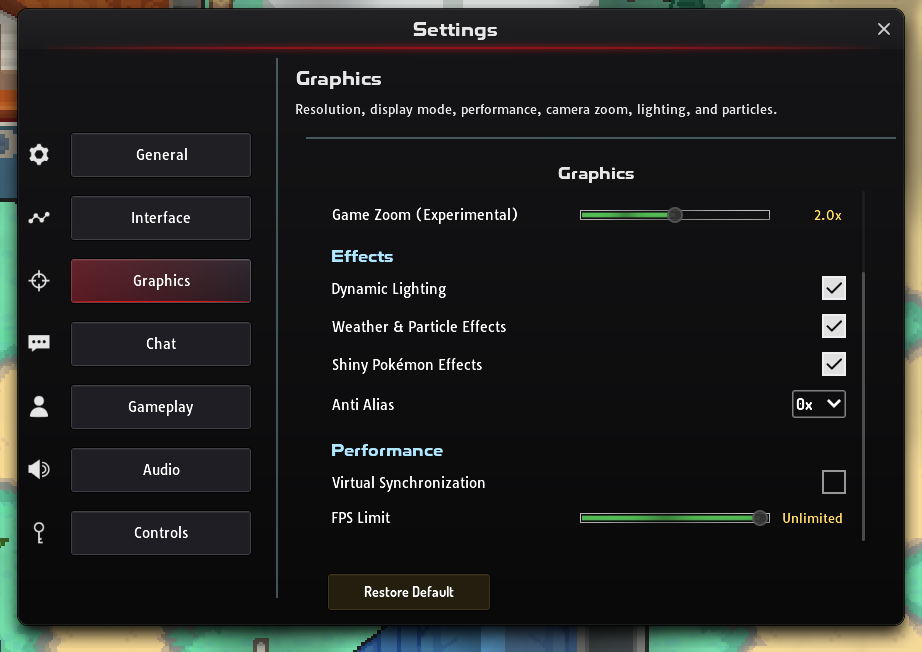
- Effects: Dynamic Lighting, Weather & Particle Effects, Shiny Pokémon Effects (the shimmer and sparkles on shiny followers) and Anti Alias.
- Performance: Virtual Synchronization (V-Sync) and an FPS Limit, in the downloaded computer version.
Some graphics changes only take effect after you restart the game; it tells you when. Which options you see depends on your device: see graphics options by device.
A shortcut to the chat window’s own settings: text size, fonts, colors, emotes and channels. See chat settings.
Gameplay
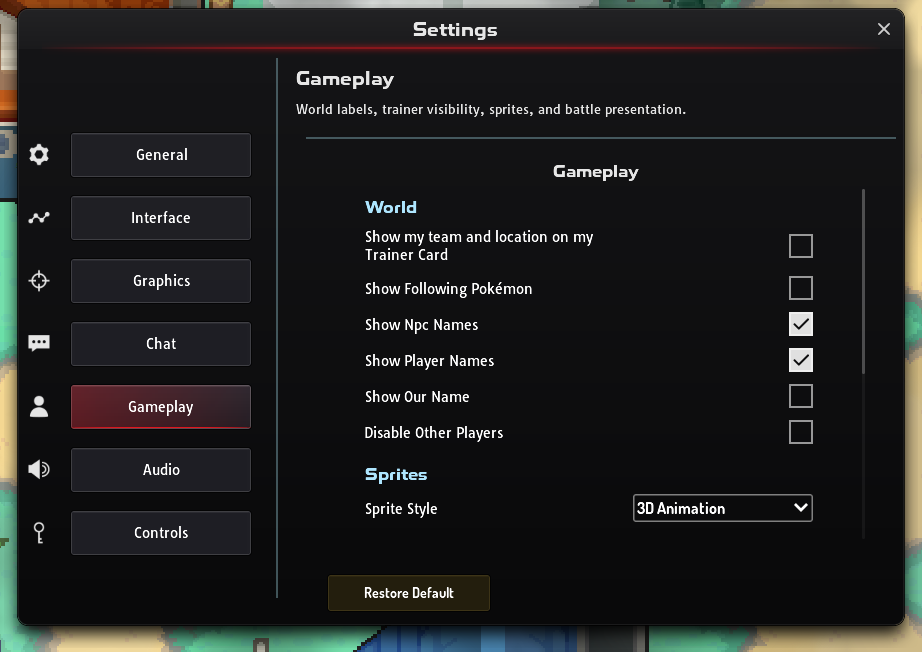
Section titled “Gameplay”- World: Show my team and location on my Trainer Card (lets other players see your party and where you are when they open your card), Show Following Pokémon, names over NPCs, other players and yourself, and Disable Other Players, which hides other trainers on the map.
- Sprites: Sprite Style sets how Pokémon sprites are drawn: Static, 3D Animation or Gen5 Animated.
- Battle: catch and faint animations, Original Move Animation Speed, slower cinematic pacing for doubles and hordes, a move effectiveness preview when a move hits several targets, and Enhanced Move Animations.
Separate volume sliders for SFX, Background music, Weather, Battle and Ambient sounds, plus Mute Sound, Disable Battle Music and switches to silence your own or your opponent’s Pokémon cries.
Controls
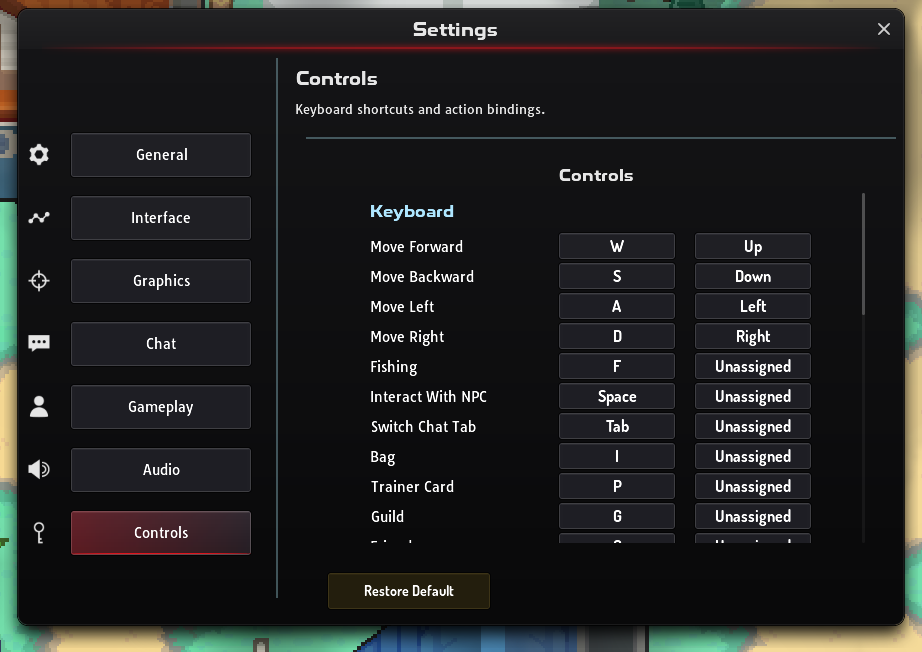
Section titled “Controls”Change any hotkey (computer and browser only). See the default hotkeys below.
Graphics options by device
Section titled “Graphics options by device”| Setting | Computer (download) | Browser | Android | iOS |
|---|---|---|---|---|
| Window resolution | Yes | No | No | No |
| Full screen | Yes | Yes (on a computer) | Always full screen | Always full screen |
| Game Zoom | Yes | Yes | Yes | Yes |
| Dynamic Lighting, Weather & Particles, Shiny effects | Yes | Yes | Yes | Yes |
| Anti Alias | Yes | No | Yes | No |
| V-Sync and FPS Limit | Yes | No | No | No |
A browser on a phone or tablet shows the shorter phone layout, without the full screen option.
Making the game run smoother
Section titled “Making the game run smoother”If the game stutters, try these in order. They help most on older phones and laptops.
- Turn off weather and lighting. In Graphics, turn off Weather & Particle Effects and Dynamic Lighting.
- Turn off shiny effects and anti-aliasing. Turn off Shiny Pokémon Effects, and set Anti Alias to 0x.
- Hide other players. In crowded places, tick Disable Other Players (Gameplay).
- Cap the frame rate. In the downloaded computer version, use V-Sync or an FPS Limit to stop the game drawing more frames than your screen can show. On a laptop this also saves battery.
- Try the app on a phone. A phone’s browser shows the same phone layouts as the Android and iOS apps. If the browser still runs slowly, play in the app instead.
If the game is still slow or crashes, open a ticket from the Help (?) window. Include your device, operating system and a screenshot of your graphics settings.
UI scale and screen size
Section titled “UI scale and screen size”- Buttons too small on a phone or tablet? Raise UI Scale in Settings → Interface. If windows don’t fit, lower it.
- A window resized too far? Use Reset all window sizes in the same place.
- Interface too large to reach the settings? On a computer, press the left Ctrl + Shift + R to reset the UI scale, then restart the game.
Hotkeys
Section titled “Hotkeys”These are the default keys on a computer. Change any of them in Settings → Controls.
Moving and windows
Section titled “Moving and windows”| Action | Default key |
|---|---|
| Move | W A S D or the arrow keys |
| Talk to an NPC | Space |
| Fish | F |
| Switch chat tab | Tab |
| Bag | I |
| Trainer card | P |
| Crew | G |
| Friends | O |
| Pokédex | K |
| Ladder (ranked battles) | H |
| Achievements | L |
| Trade House | T |
| World map | M |
| Game Menu | Esc |
Battles, field moves and shortcuts
Section titled “Battles, field moves and shortcuts”| Action | Default key |
|---|---|
| Moves 1–4 in battle | 1, 2, 3, 4 |
| Run from a wild battle | R |
| Rock Smash, Strength, Rock Climb, Waterfall, Cut | 6, 7, 8, 9, 0 |
| Quick access slots 1–10 | Numpad 1–9, Numpad 0 |
| Open party Pokémon 1–6 | F1–F6 |
Before you use any macro or automation tool, read the rules.
Account settings
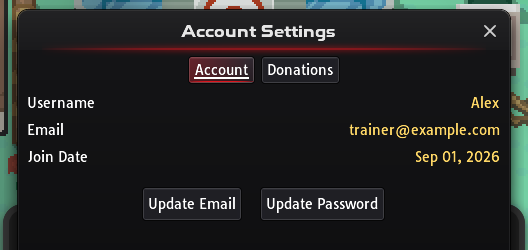
Section titled “Account settings”Press Esc and choose Account Settings to see your account details and change your e-mail or password.
Changing your e-mail
Section titled “Changing your e-mail”- Request a code. Choose Update Email, type your new address and your current password, and choose Send Code.
- Check your current inbox. A 6-digit code is sent to your current e-mail address, not the new one, to prove the change is really you. Check your spam folder if it doesn’t arrive within a few minutes.
- Confirm. Enter the code and choose Verify & Update.
Codes expire after a short while; if yours has, request a new one. If you try too many times, wait a minute and try again. You can’t use an address that is already linked to another account.
Changing your password
Section titled “Changing your password”Choose Update Password and enter your current password and the new one twice. It must be at least 6 characters. The game then e-mails you to say the password was changed.
Forgot your password? Use Forgot Password? on the login screen.