
PC Storage
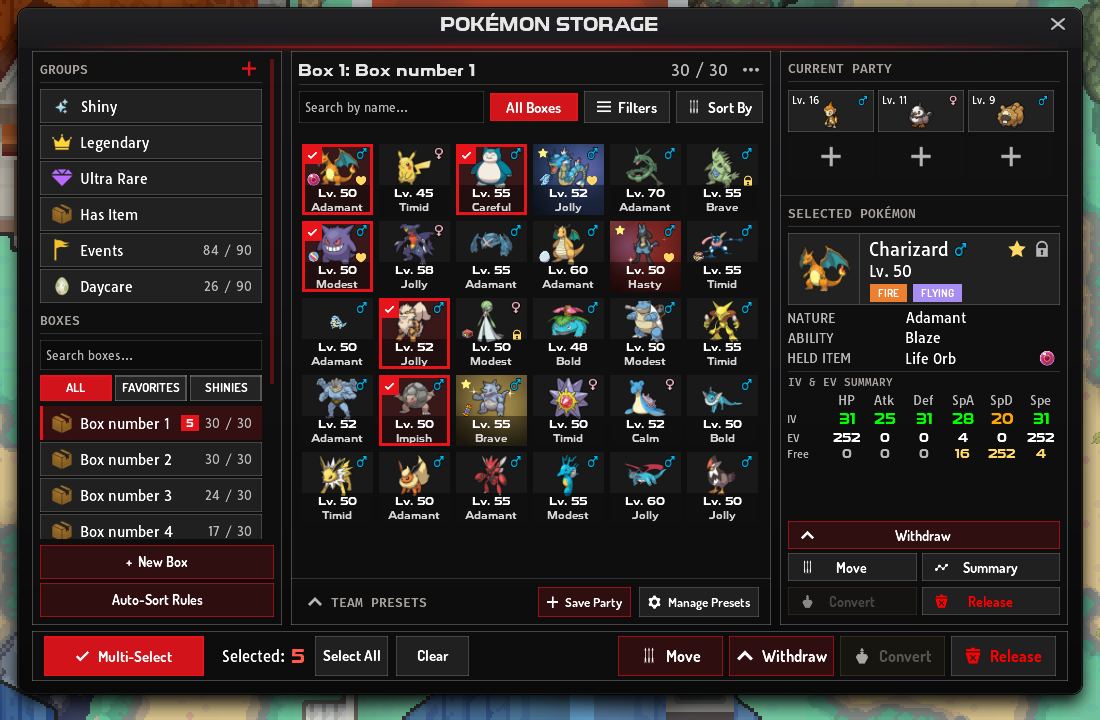
Every Pokémon that isn’t in your party lives in your PC. The Pokémon Storage window lets you move, search, sort and release them. It also saves whole teams as presets and sends new catches to the box you choose.
Opening the PC
Section titled “Opening the PC”Walk up to a PC, face it and press Space (on a phone, tap it). Every Pokémon Center has a PC. So do many other buildings, such as the professors’ labs, the Daycares, the Battle Frontier and the Elite Four lobbies.
There is no menu button or item that opens your storage anywhere else.
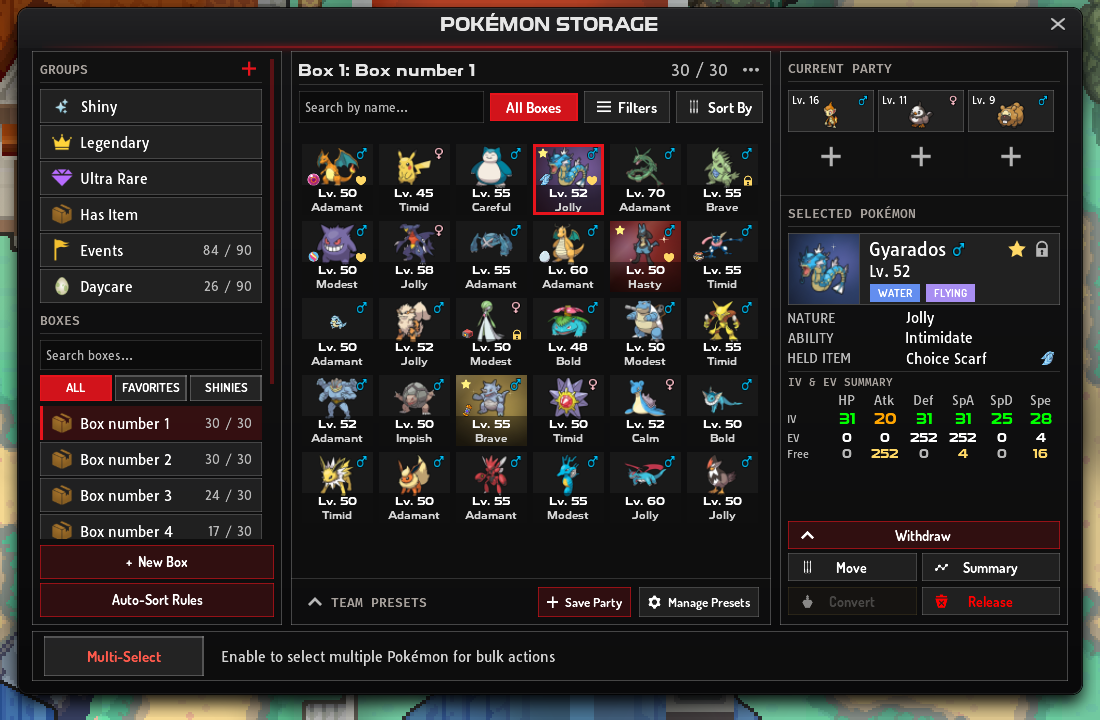
The window at a glance
Section titled “The window at a glance”| Part | What it does |
|---|---|
| Groups and Boxes (left) | Your boxes, your saved groups and the built-in views. New Box and Auto-Sort Rules sit at the bottom. |
| Box grid (centre) | The Pokémon in the open box, with the search box, Filters and Sort By above it. |
| Team Presets (under the grid) | Saved teams you can load in one go. |
| Current Party (right) | Your party. Click a Pokémon to see its card. |
| Selected Pokémon (right) | Nature, ability, held item, IVs and EVs of the Pokémon you picked, with buttons for it. |
| Bottom bar | Multi-Select and the bulk actions. |
Each tile shows the Pokémon’s level, nature and gender. A star marks a shiny, and an icon shows a held item.
You start with 10 boxes of 30 slots. Click a box in the Boxes list to open it; the search field above the list finds a box by name.
The … button next to the box title has Rename Box (up to 15 characters), Set Box Icon and New Box.
Getting more boxes
Section titled “Getting more boxes”Each  Storage Box adds one box of 30. Press New Box in the PC, or use the item from your Bag. The PC uses up untradable Storage Boxes before tradable ones.
| Where | Storage Boxes |
|---|---|
| Professor Blaze Helper, Prof. Blaze’s Lab (Jvaloh) | 10 |
| Professor’s Aide, Professor Birch’s Laboratory, for 3 Zigzagoon (Hoenn) | 5 |
| Professor Oak, for Oak’s Parcel (Kanto) | 5 |
| Donator Shop | 1 for 350 Gems, or 5 for 1,500 Gems |
Groups and built-in views
Section titled “Groups and built-in views”A group shows several boxes in one grid. Press + next to Groups, name the group and tick its boxes. You can have up to 20 groups.
Right-click a group (long-press on a phone) to edit or delete it. Deleting a group leaves its boxes and Pokémon alone.
Above your own groups, built-in views search every box for you: Shiny, Legendary, Ultra Rare and Has Item. You can’t edit them or drop Pokémon on them.
The All, Favorites and Shinies buttons under the box search filter the box you have open.
Searching, filtering and sorting
Section titled “Searching, filtering and sorting”Search
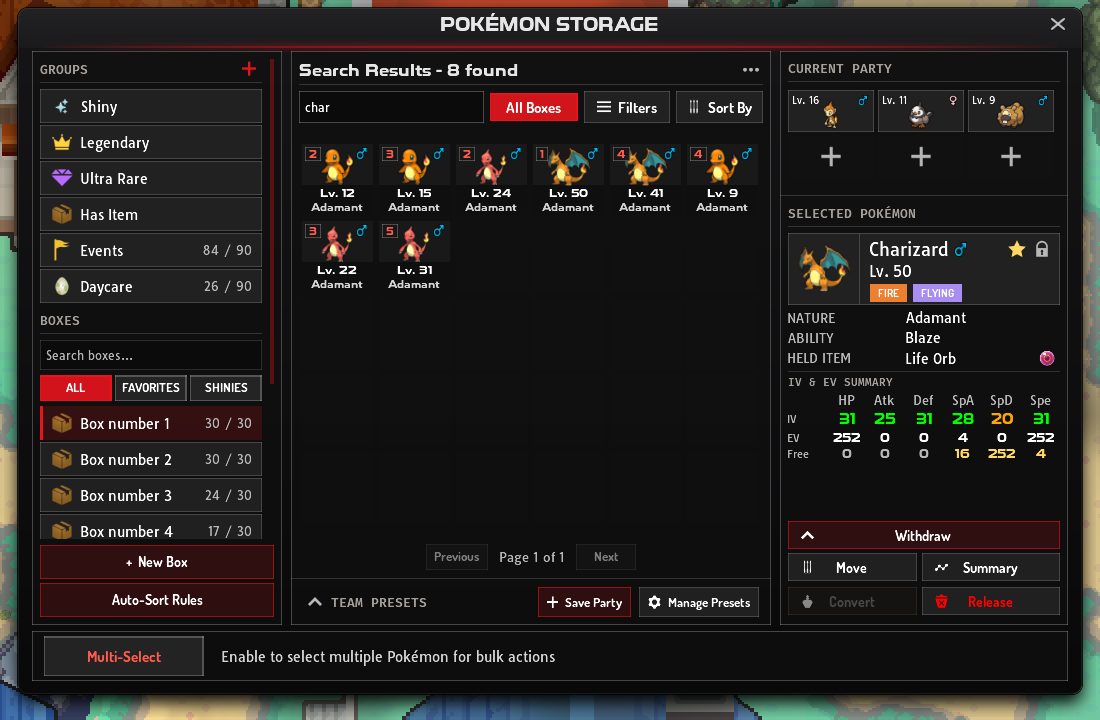
Section titled “Search”Type a Pokémon’s name in the search box. The button next to it switches between All Boxes and This Box:
- All Boxes searches every box once you have typed 3 letters. Results come 30 to a page, and each one shows its box number in the corner.
- This Box filters the open box as you type.
Filters
Section titled “Filters”Filters narrows the list by:
- type (2 slots), ability, nature and rarity
- held item, by name
- level range
- shiny only
- minimum IVs, stat by stat
- the region a Pokémon was caught in
Press Apply to use them and Reset to clear them. The button shows how many filters are on, for example Filter (2). Filters follow the same All Boxes or This Box choice as the search.
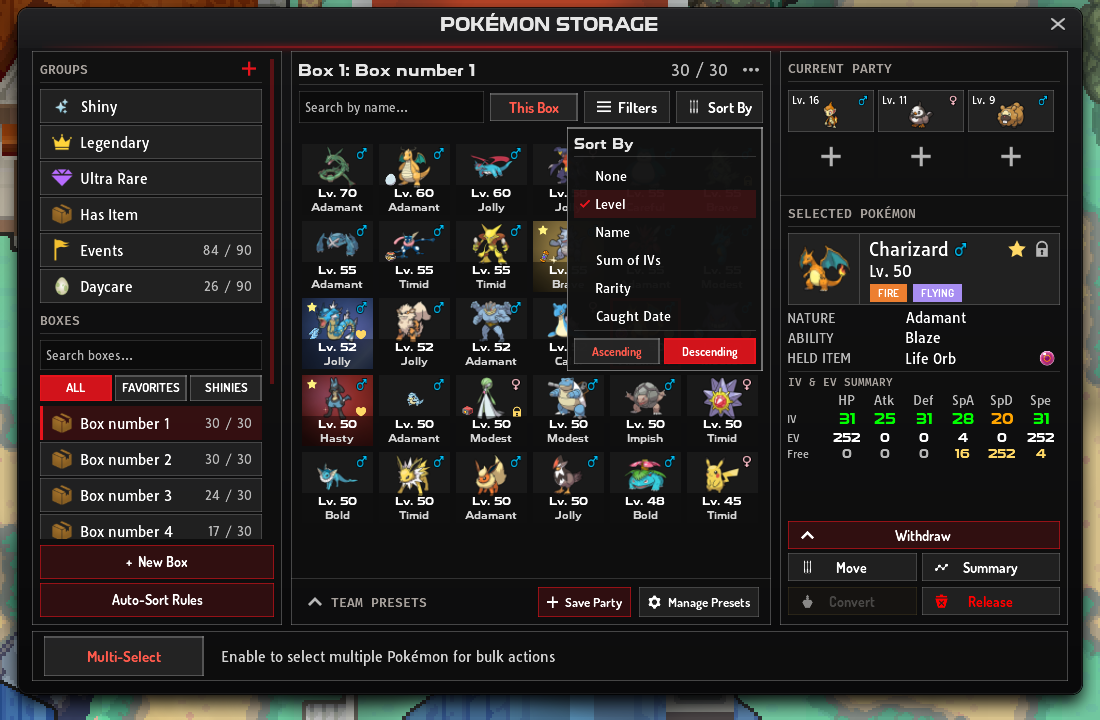
Sort By orders Pokémon by Level, Name, Sum of IVs, Rarity or Caught Date, Ascending or Descending. Pick None to go back to box order.
With All Boxes on, sorting shows every box in one sorted list. With This Box on, it sorts the open box only. Sorting only changes what you see; no Pokémon changes box.
Moving Pokémon
Section titled “Moving Pokémon”| To | Do this |
|---|---|
| Take a Pokémon into your party | Drag it anywhere on Current Party, or press Withdraw. It takes the next free slot. |
| Put a party Pokémon in the PC | Drag it from Current Party onto the box grid. It goes into the box you have open. |
| Move it to another box | Drag it onto a box or group in the left list, or press Move. Move lists your boxes with their free slots, and you can search them. |
| Take off its held item | Remove Held Item in its menu. The item goes back to your Bag. |
Your party holds 6 Pokémon, and you can’t put your last party Pokémon in the PC.
The Pokémon menu
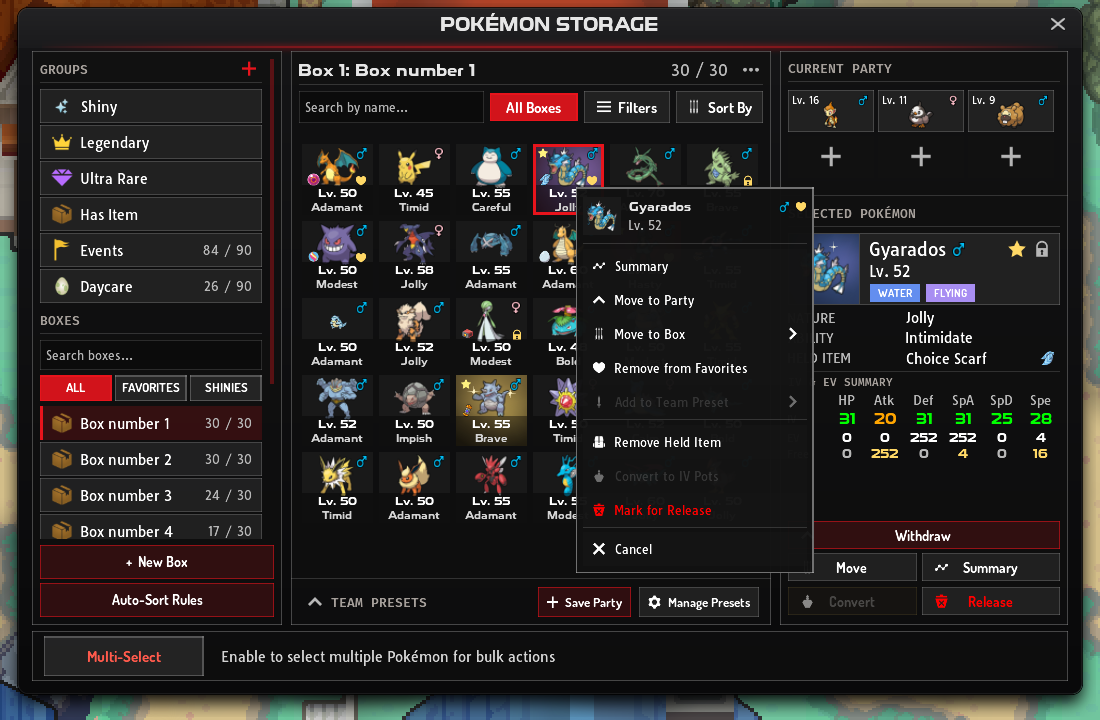
Section titled “The Pokémon menu”Right-click a Pokémon (long-press on a phone) to open its menu:
- Summary
- Move to Party
- Move to Box
- Add to Favorites (or Remove from Favorites)
- Add to Team Preset
- Remove Held Item, if it holds one
- Convert to IV Pots
- Mark for Release
The Selected Pokémon panel has the main ones as buttons. On a computer, rest the mouse on any Pokémon to see its stats there without selecting it.
Summary opens the Pokémon’s card in its own card style. In the PC the card is read-only: to train a Pokémon, put it in your party and open its card there.
Favourites and locks
Section titled “Favourites and locks”The star and the padlock next to a Pokémon’s name in Selected Pokémon mark it as a favourite or lock it. Its tile then shows a heart or a padlock.
- Favourites show up when you press Favorites under the box search.
- Locked Pokémon can’t be released or converted to IV Potions, alone or in a selection. Unlock it first to do either.
Selecting many at once
Section titled “Selecting many at once”Turn on Multi-Select in the bottom bar, then click or tap Pokémon to tick them. Select All ticks every Pokémon on screen, and Clear unticks them all. A selection can include Pokémon from several boxes.
| Button | What it does to the selection |
|---|---|
| Move | Moves it to another box |
| Withdraw | Adds it to your party, if there is room |
| Convert | Turns it into IV Potions; only when every selected Pokémon qualifies |
| Release | Releases it for good |
Release and Convert take up to 30 Pokémon at a time. Dragging a ticked Pokémon carries the whole selection with it.
Team presets
Section titled “Team presets”Team Presets save a party of up to 6 Pokémon so you can swap it in with one press.
- Save Party saves your current party in the first free preset.
- Load on a preset card swaps your party for that team.
- To add one Pokémon, drag it onto a preset card, or use Add to Team Preset in its menu.
- Click a preset card (long-press on a phone) to edit, overwrite, clear, rename or delete it.
When you load a preset, party Pokémon that aren’t in it go back to the box they came from. If that box is full, they go to the first box with space. If your boxes don’t have room for them all, nothing moves.
A card marked Partial has lost a member, for example one you traded or released. Loading it asks first, then loads the others.
You get 5 preset slots for free, and each extra slot costs 300 Gems (Unlock Preset). You can’t load a preset while a PvP team is in use.
Auto-sort rules
Section titled “Auto-sort rules”A wild Pokémon you catch while your party is full goes to the first box with space. Auto-Sort Rules, under the box list, let you pick the box instead.
-
Add a rule. Press Auto-Sort Rules, then + Add Rule. Choose the box under Send to box.
-
Add conditions. Each rule can have up to 5: Pokémon type, caught region, name contains, rarity is, rarity at least, and is shiny. A Pokémon must match all of them. A rule with no conditions matches every Pokémon.
-
Put them in order. Rules are checked from the top down, and the first match wins. Use the arrows to move a rule, and untick it to switch it off.
-
Save. Press Save Rules.
If the matching rule’s box is full, the next matching rule decides. If nothing matches, the first box with space is used. You can have up to 10 rules.
Releasing Pokémon
Section titled “Releasing Pokémon”Release one Pokémon with Release in Selected Pokémon or Mark for Release in its menu, or a whole selection with Release in the bottom bar. A release can’t be undone.
- A Pokémon holding an item can’t be released. Take the item off first.
- Releasing a shiny or Ultra Rare Pokémon always asks you to type a short code.
- A bulk release that includes Legendary, Ultra Rare or shiny Pokémon asks a second time and counts them.
Turning Pokémon into IV Potions
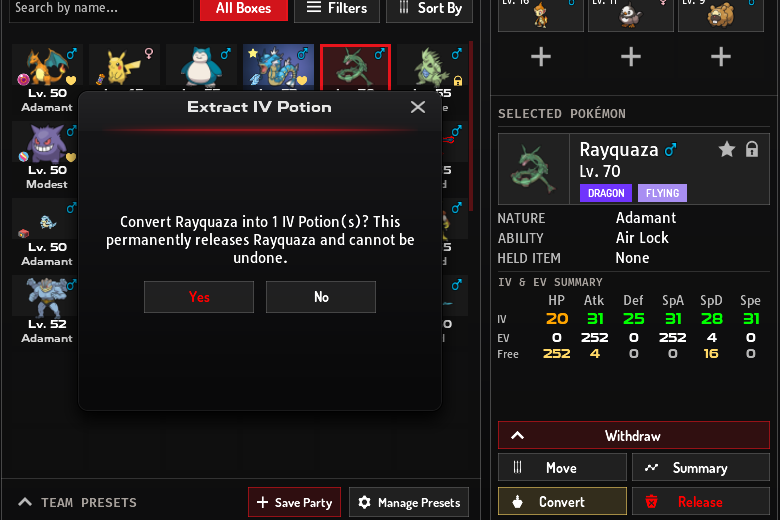
Section titled “Turning Pokémon into IV Potions”Legendary, Ultra Rare and shiny Pokémon that hold no item can become  IV Potions right in the PC. Use Convert to IV Pots in Selected Pokémon or the Pokémon’s menu. The Extract IV Potion window says how many potions you get. Once you confirm, the Pokémon is gone for good.
How many each Pokémon gives is in turning Pokémon into IV Potions.
On a phone or tablet
Section titled “On a phone or tablet”| To | On a computer | On a phone |
|---|---|---|
| Open a Pokémon’s menu | Right-click it | Long-press it |
| See a Pokémon’s stats | Rest the mouse on it | Tap it |
| Edit or delete a group | Right-click the group | Long-press the group |
| Open a preset’s menu | Click the card | Tap or long-press the card |
| Scroll the grid | Mouse wheel | Swipe |
| Move a Pokémon | Drag it | Drag it, or use Move |
On short screens the window uses a compact layout. Press the Team Presets title to fold the preset cards away or bring them back.