The game screen
PBO packs a lot onto one screen. This page goes through it panel by panel: what every button does and where to find it. Hover over any icon (or touch and hold it on a phone) to see its name.
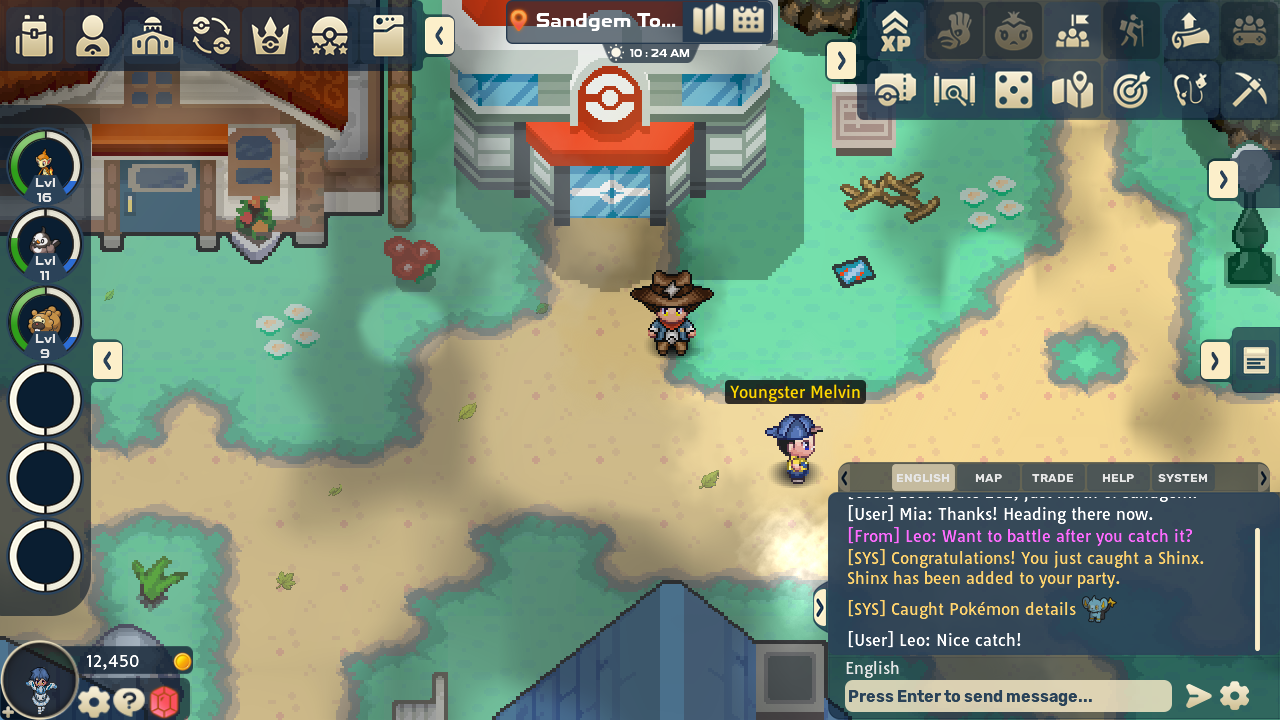
- Main menu
- Map name, clock and events
- Trackers and shortcuts
- Quest Tracker
- Your party
- Player panel
- Chat
Main menu
Section titled “Main menu”The row of large buttons in the top-left corner opens the main windows. On a computer each one also has a hotkey, which you can change in Settings → Controls.
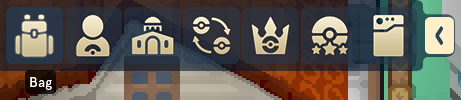
From left to right:
| Button | Default key | Opens |
|---|---|---|
| Bag | I | Your items, sorted into tabs |
| Friends | O | Your friends, friend requests, Mail and blocked players |
| Crew | G | Your crew, its shared storage and crew skills |
| Trade House | T | The player market |
| Achievements | L | Your achievements and the leaderboards, in one window; see achievements and leaderboards |
| Ladder | H | Ranked battles (you need at least one Pokémon in your party) |
| Pokédex | K | Each Pokémon’s stats, moves, abilities, evolutions, drops and where to find it |
More about each: ranked PvP, crews and Crew Wars and the Trade House.
A red number on the Friends button counts your unread mail. While the main menu is folded away, its arrow shows a red dot instead.
Map name, clock and events
Section titled “Map name, clock and events”The clock, the World Map button and the Events button sit next to the name of the map you are on.
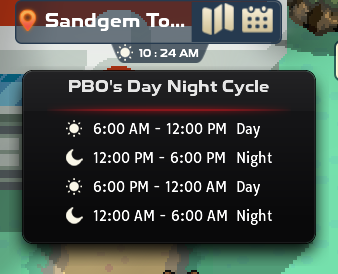
The clock shows server time, which is UTC. Hover over it (or tap it) to see PBO’s day and night table; see day and night for why it matters.
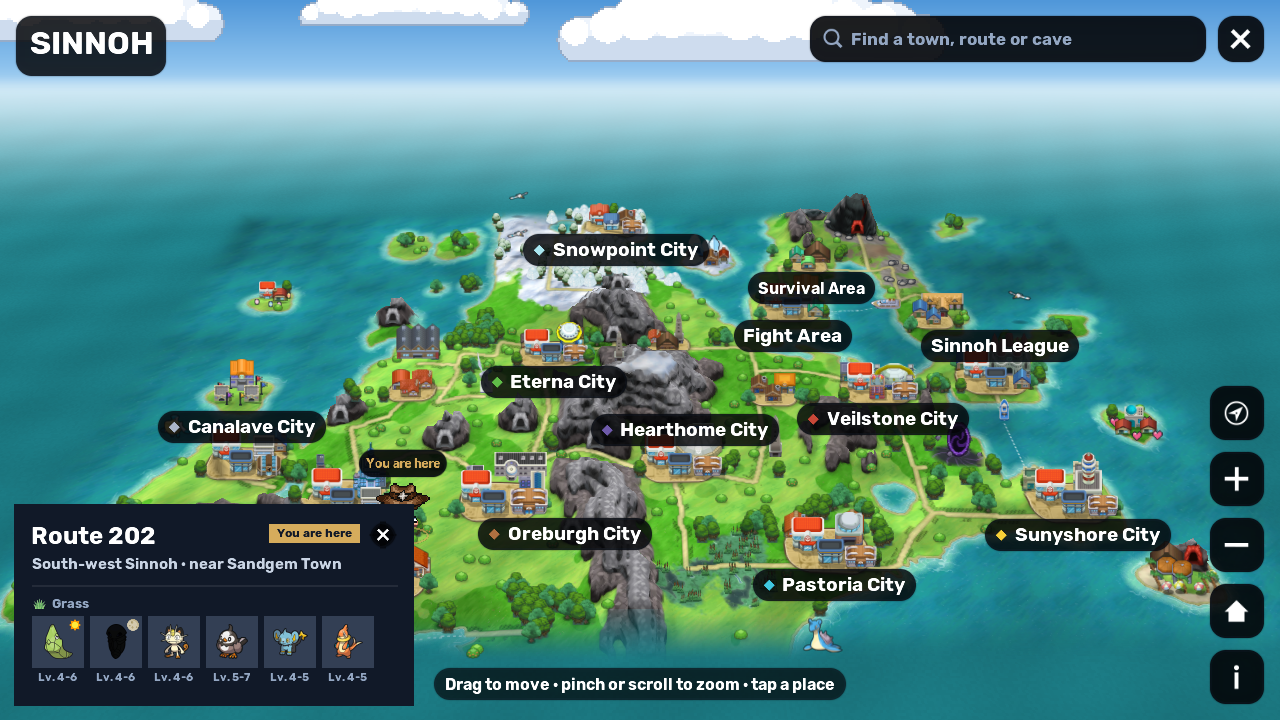
World Map (key M) opens a 2.5D map of the region you are in, which you drag and zoom; it tilts as you zoom in. It shows every town, route and cave, where you are, any running Swarms and Lures, and which Pokémon live in each place. You need the region’s Map item in your bag to open it, such as the  Sinnoh Map; see how to get each region’s map. The World Map explains its controls and place cards.
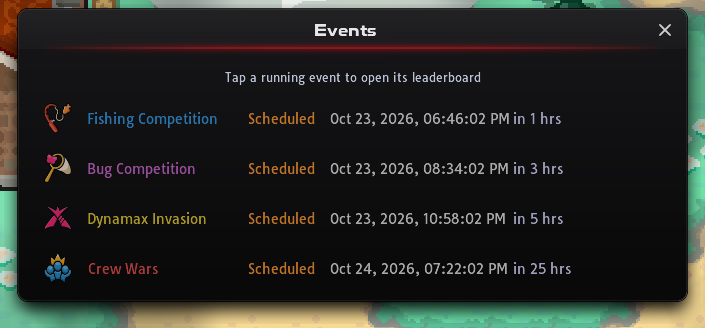
Events lists upcoming events and when they start. While Crew Wars, a Fishing or Bug-Catching Competition or a Dynamax Invasion is running, the icon changes to match. Pressing it then opens that event’s standings or details.
Server-wide effects and news sit in a small strip of extra icons: Lures and Swarms (press them to see which maps, and until when), Shiny Charm, event charms and News.
Top-right icon bar
Section titled “Top-right icon bar”The two rows of icons in the top-right corner are your trackers and shortcuts. Collapse them with the arrow on their left.
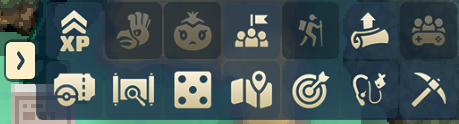
The top row, from left to right:
| Icon | What it does |
|---|---|
| In Progress Experience Boosts | Lists every experience boost running on the server and when it ends. |
| Ho-Oh Priest (experience) | Donate to the priest. When the server’s donations reach the target shown in the window, everyone gets +100% experience for an hour. The icon lights up while the blessing is active. |
| Fishing priest | The same, but for fishing experience. |
| Community Goals | Shared server goals that unlock server-wide boosts. |
| Expeditions | Opens the Expeditions Log: the atlases, your past attempts and each map’s leaderboard. |
| Skills | Your mining and crafting skills. See mining and crafting. |
| Party | Create or manage a Co-op Duo or an Expedition Group. Unlocks after you meet Dawn on Route 202. See co-op and hordes. |
The bottom row, from left to right:
| Icon | What it does |
|---|---|
| Game Pass | Your monthly pass progress and rewards. See Game Pass and membership. |
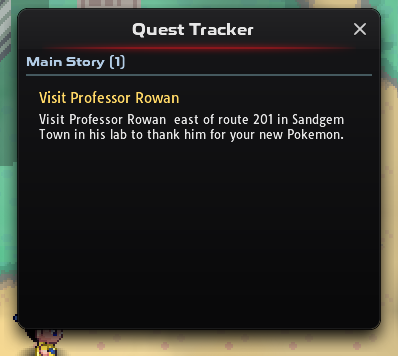
| Quest Tracker | Your current story and quest steps. The best place to look when you are stuck. |
| Luck Protection | Your Ultra Rare and Legendary protection bars and your hunt history. See Luck Protection. |
| Roaming Pokemon Tracker | Roaming Pokémon you have unlocked and where they are. |
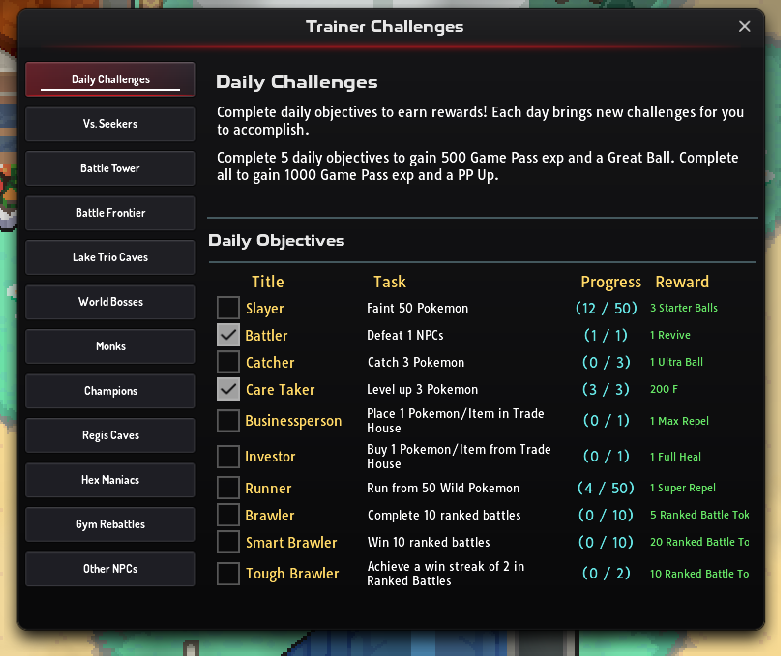
| Trainer Challenges | Daily challenges plus the repeatable battles: Vs. Seekers, Battle Tower, Battle Frontier, Lake Trio Caves, World Bosses, Monks, Champions, Regis Caves, Hex Maniacs, Gym Rebattles and other NPCs. |
| Fishing Skill | Your fishing level. See fishing. |
| Mining Radar | Shows the mines in the region you are in. You need the  Mining Toolpad in your bag. Mining Toolpad in your bag. |
Two windows from the bottom row:
Player panel
Section titled “Player panel”The panel in the bottom-left corner shows your money and the buttons you use all the time.
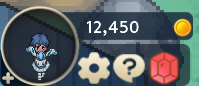
- Trainer card (key P): see trainer card.
- Settings, with seven categories: see settings and performance.
- Help (?): see Help.
- Donator Store, the gem shop: see shops and currencies.
Active effects show in a small fold-out strip of their own while something is running for you. The arrow opens and closes it; hover an icon for details. The strip can show:
 Repel (press it to see the steps left),
  Blaze Radar,
  Pure Nectar and
  Shiny Tracker (press it to open the Shiny Tracker window)
- Membership (hover for its end date)
- a timer icon on maps you can only stay on for a limited time, showing how long you have left
Your party
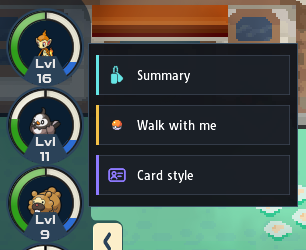
Section titled “Your party”Your party sits on the left of the screen. Click a Pokémon to open its card, and click it again to close it. Right-click it (long-press on a phone) for a short menu:
- Summary also opens the card.
- Walk with me makes that Pokémon your follower.
- Card style opens the Card style picker for that Pokémon.
To have a follower at all, keep Show Following Pokémon switched on in Settings → Gameplay.
The card has five tabs: Summary, IVs, EVs, Moves and Skills. The emblem in its top-left corner opens the Card style picker, where you choose how the card looks. See Pokémon cards and card styles.
Trainer card
Section titled “Trainer card”Your trainer card shows who you are: your trainer and partner Pokémon, your best cards, stats, badges and trophies, and your journal. Open your own with the trainer card button in the player panel or P.
To see another player’s card, click their trainer and choose Trainer Card. You can also open any online player’s card from chat, Friends, your crew or the leaderboards; see other players’ trainer cards.
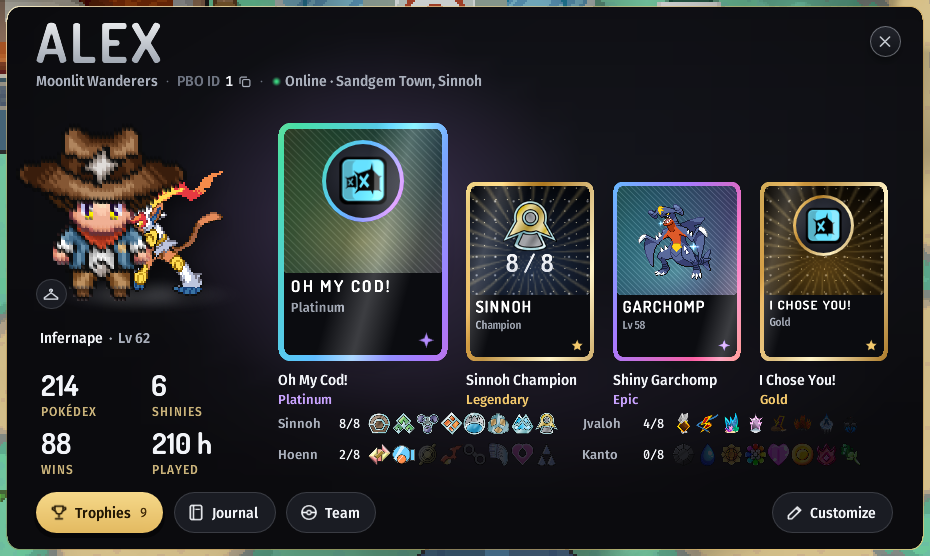
| Part | What it shows |
|---|---|
| Name band | Your name, with your donator rank or staff role beside it if you have one. Under it: your crew, your PBO ID (click it to copy it), whether you are online and where, and your motto. |
| Trainer and partner | Your trainer in your current outfit, and the partner Pokémon you picked. |
| Stats | 4 stats of your choice. Until you pick your own, the card shows Pokédex, Shinies, Wins and Played. |
| Showcase | 4 cards: a large hero card and 3 more. Each one is a Pokémon, a stat, a region’s badges or a trophy. Until you pick your own, your rarest ones fill it. |
| Badges | A row of badges for every region, the earned ones lit, with your featured region first. |
| Buttons | Trophies (with how many you have earned), Journal and Team, and on your own card Customize. |
Showcase cards
Section titled “Showcase cards”Each showcase card has a finish that shows how rare it is, from Common through Uncommon, Rare, Epic and Legendary to Mythic:
- Pokémon: rarer species get rarer cards. A shiny Pokémon’s card is a step rarer, and at least Epic.
- Stats: the higher the number, the rarer the card.
- Badges: the more of a region’s badges you have, the rarer the card. All 8 make a Champion card.
- Trophies: the medal’s metal decides: Bronze, Silver, Gold or Platinum.
Click a card (tap on a phone) to inspect it. It lifts out at full size, and a Pokémon card tells its story: where and when it was caught, the ball and its original trainer.
When a card opens, its showcase cards land face down and flip over, the rarest last. Click to skip this, or set Card Style Animations to Off in Settings → Interface to show the cards at once.
Trophies, Journal and Team
Section titled “Trophies, Journal and Team”- Trophies: every achievement as a medal, the earned ones lit and first, with buttons to show one category. Click a medal to see what it is for and its reward.
- Journal: your motto and journal. On your own card, press Edit, write up to 500 characters and press Save.
- Team: the trainer’s party as cards. On another player’s card it shows only when they let other players see their team.
Customising your card
Section titled “Customising your card”Press Customize on your own card. It has three parts, and Done saves all of them (Cancel drops your changes):
| Part | What you change |
|---|---|
| Cards | Press Change under a showcase slot and pick its card from Pokémon, Stats, Badges or Trophies. The Pokémon list covers your party and every box, with a search and filters. Change partner picks your partner from your party or any box, or None. |
| Style | Background (9 colours), Card color (9), Accent (6), Card back (Ring, Poké Ball or Star), Frame (Brushed, Double or None) and Card glow (On or Off). The card shows each pick at once. |
| Details | Your Motto (one line of up to 60 characters), the 4 Stats on the card, your Featured badges (Automatic or one region), and whether other players see your stats and your journal. |
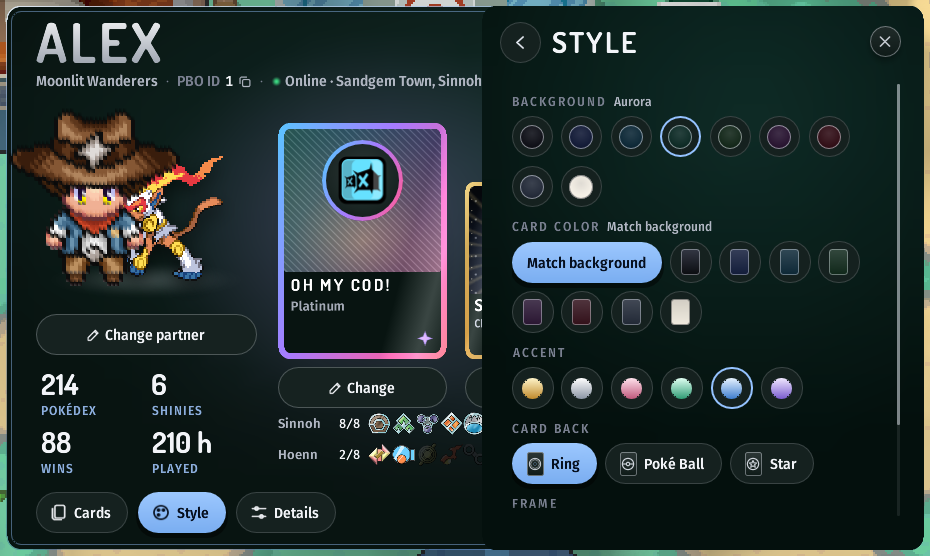
Your outfit isn’t part of Customize. To change it, click your trainer on your own card, or the hanger at their feet; see changing your outfit.
What other players see
Section titled “What other players see”- Only players who are online can have their card opened.
- Turn off Show my team and location on my Trainer Card in Settings → Gameplay to hide your party (the Team button) and the map you are on from other players. Your showcase, partner, stats, badges and journal still show.
- In Customize → Details, the Visitors see buttons hide your stats or your journal.
Your bag has seven tabs: General, Pokeball, Medicine, Machines, Miscellaneous, Customization and Custom. The search box filters the tab you have open, and the menu next to it sorts items by name or quantity.
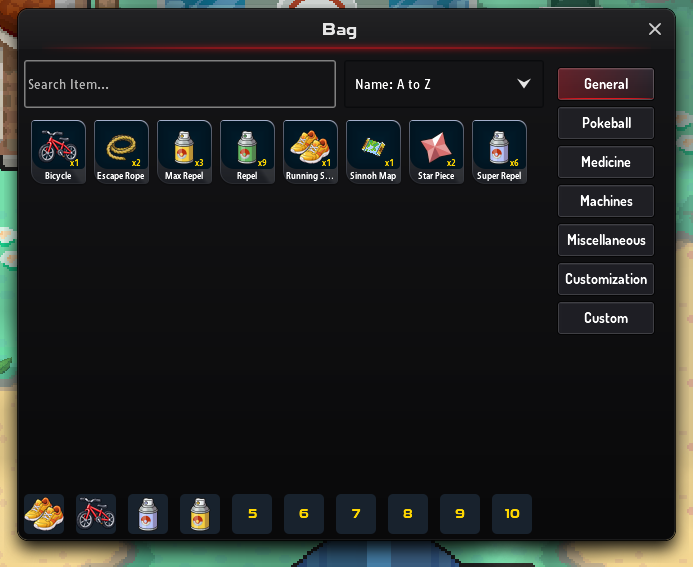
- Quick access. The ten slots along the bottom hold items you use often, such as a bicycle, mount or repels. Drag an item onto a slot to add it. Use them with Numpad 1 to 0 on a computer, or from the quick menu you get by clicking your own trainer.
- Dropping items. Drag an item to the bin to throw some or all of it away. You are asked how many and to confirm.
- Item details. Hover over an item to see its tooltip: its name, its Bag pocket and what it does. A chest’s tooltip also lists every prize it can give and how likely each one is. On a phone, touch and hold the item; letting go opens its menu, as a tap does.
- Costumes. Customization holds your mounts and outfit pieces. You can dress up from here, or in the Outfit window of your trainer card.
Custom categories
Section titled “Custom categories”The Custom tab lets you make your own bag tabs. Each category is one of two kinds:
| Kind | How items get in |
|---|---|
| Manual | You add items yourself. Right-click an item (long-press on a phone) and choose the category. |
| Rules Based | Items are sorted in automatically when their name matches your rules. |
A rule can be Starts With, Ends With, Contains, Exact Match or Regex, and ignores upper and lower case unless you untick Ignore Case. When a category has several rules, an item must match all of them.
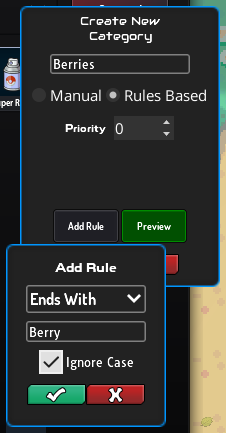
Each item shows in only one category. An item you placed in a manual category stays there; otherwise, if it matches several rule-based categories, the one with the highest Priority wins.
Press Preview to see how many items your rules would catch before you save. Categories are stored on your device, so set them up again if you play on another one.
A few rules to start with:
| Category | Rule |
|---|---|
| Berries | Ends With Berry |
| Chests and bundles | Regex \b(Chest|Box|Pack|Bundle)\b (the \b marks keep Chesto Berry out) |
| IV and ability items | Regex (IV Potion|IV Randomizer|Ability Capsule|Ability Patch|Ability Shield) |
| EV resets | Ends With EV Reset |
The quick menus
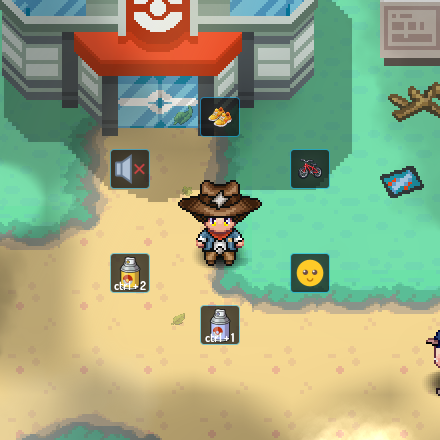
Section titled “The quick menus”Click your own trainer (tap on a phone) for a quick menu with:
- buttons to ride or get off your
 Bicycle, and to run or walk with the
  Running Shoes
 - Mute all sounds
- your quick access items
- your emotes, if you own mood packs
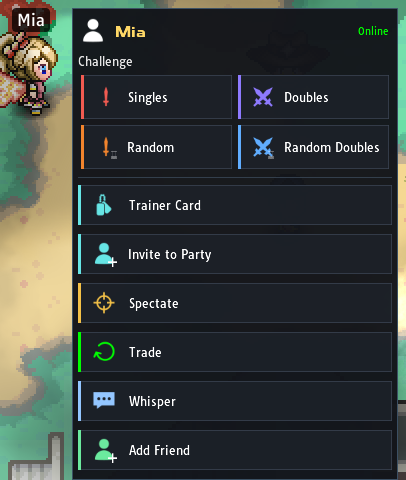
Click another trainer for:
- Challenge: Singles, Doubles, Random or Random Doubles
- Trainer Card, Invite to Party and Spectate (if they are battling)
- Trade, Whisper and Add Friend (see chat, friends and trading)
For players who aren’t on your map, right-click or long-press their message in chat, or click them under Played lately in Friends, to open the player menu. It opens their trainer card and has the other actions too.
Pokédex
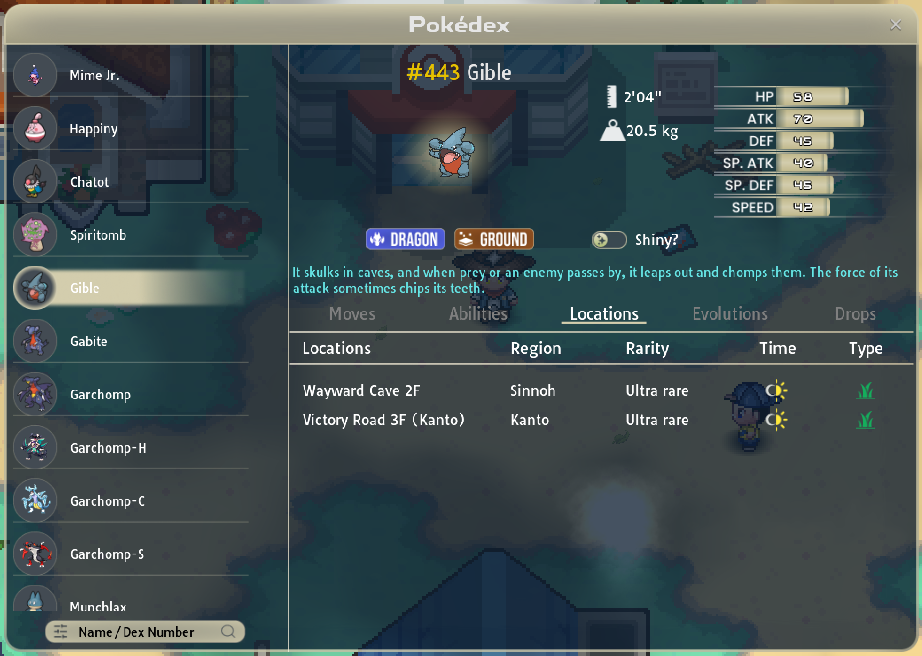
Section titled “Pokédex”Open the Pokédex (K) and pick a Pokémon to see its tabs:
- About
- Moves: level-up, egg and tutor moves
- Locations: where and when it appears, with its rarity
- Evolutions
- Abilities, with an explanation of what each ability does
- Drops
The filters let you search by name or number, type, ability, move or an item it drops, or show only the Pokémon you have caught.
A Poké Ball next to a Pokémon means you have caught it. Pokédex progress explains what counts as seen and caught, and what your counts unlock.
Achievements and leaderboards
Section titled “Achievements and leaderboards”The Achievements button opens one window for your achievements and the leaderboards. The switch at its top changes between them:
- Achievements lists every achievement with its reward, your progress and the share of players who have it.
- Leaderboards ranks players by the numbers on their Trainer Card, such as catches, wins and Dynamax Invasions damage. Each board can show Today, This week, This month or All time, among Everyone, your Friends or your Crew.
See achievements and leaderboards for how both sides work.
Help (?)
Section titled “Help (?)”The Help button in the player panel opens a window with one row per common problem:
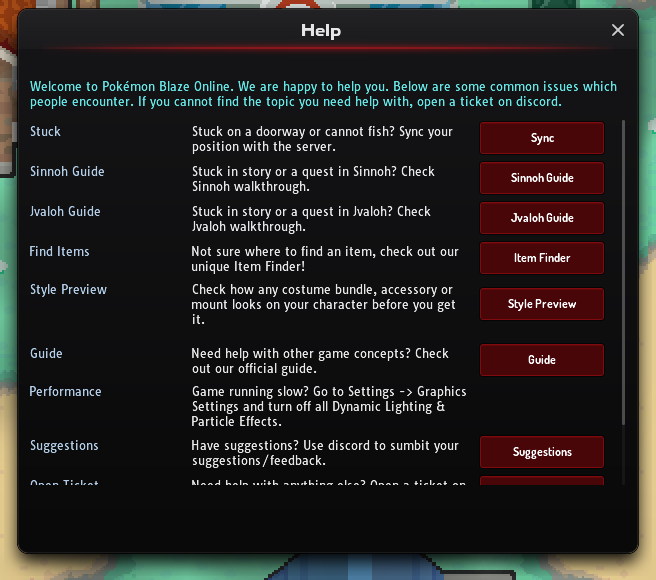
- Stuck → Sync: fixes your position if you are stuck in a doorway after lag. The
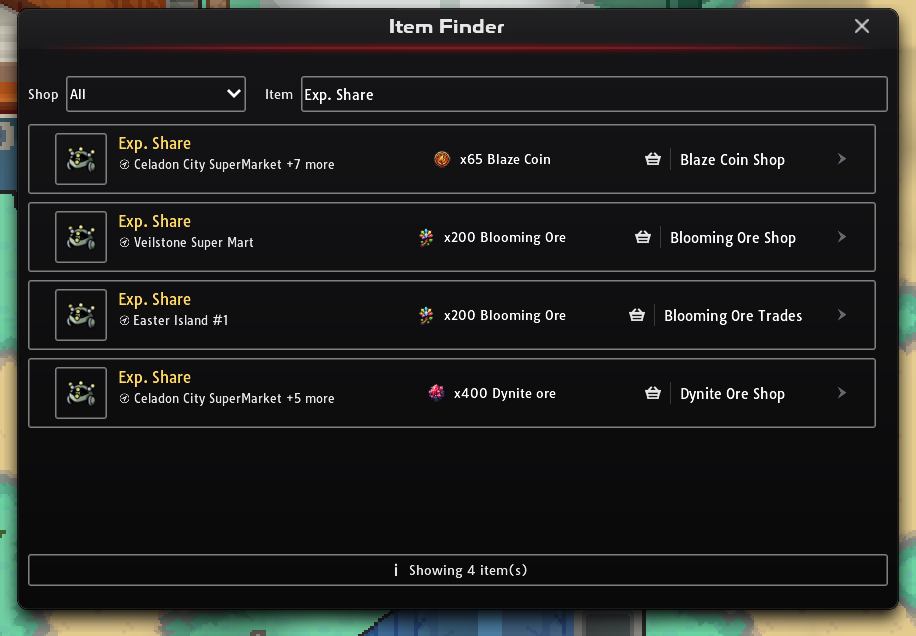
/syncchat command does the same. - Find Items → Item Finder: type an item’s name to see which traders sell it and for how much. It covers the shops that take items as currency (token, ore and Blaze Coin traders), not Poké Mart stock.
- Style Preview: try costumes and mounts on your trainer before you buy them. See trying a look on first.
- Guide, Sinnoh Guide and Jvaloh Guide: link to the forum guides.
- Performance: tells you which graphics settings to turn off.
- Open Ticket: gets you support on Discord.
- Suggestions: sends feedback.
The Game Menu
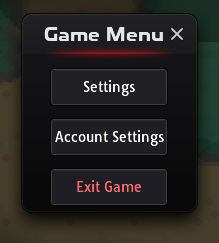
Section titled “The Game Menu”Press Esc on a computer (or the Back button on Android) for the Game Menu: Settings, Account Settings (change your e-mail or password) and Exit Game.