
Chat, friends and trading
This page covers talking to other players, keeping a friends list, sending mail, blocking people you don’t want to hear from and trading safely. Chat follows the game rules.
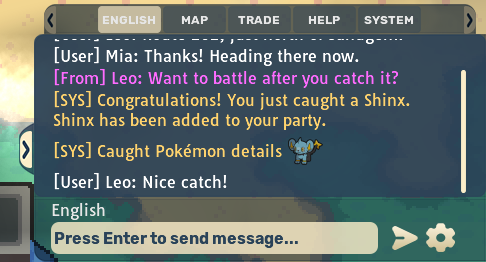
The chat window
Section titled “The chat window”Chat is split into tabs. The standard channels are:
| Channel | What it is for |
|---|---|
| English | The main server-wide chat. |
| Map | Players on the same map as you. |
| Trade | Buying and selling. You can post here once every 30 seconds. |
| Help | Questions about the game. |
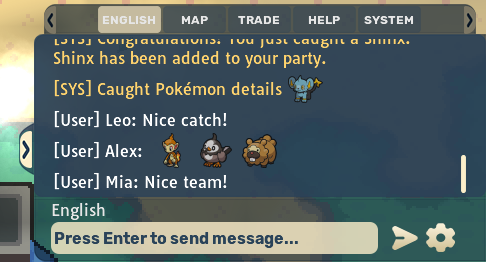
| System | Game messages such as catches, events and announcements. |
There are also language channels (for example Portuguese, Spanish and Chinese) and channels made by players. Press Tab on a computer to jump between tabs, or use the arrows at the ends of the tab row.
Emotes in chat
Section titled “Emotes in chat”Emotes come from mood packs, which the Donator Store sells. Once you own one, type : in the chat box to open the emote picker, or right-click the Send button (long-press it on a phone). Pick an emote, then press Enter or Send.
Chat settings
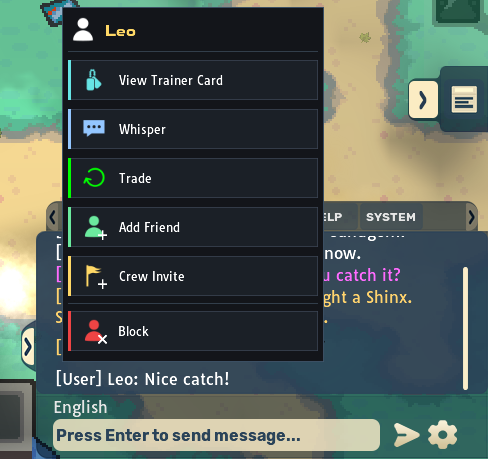
Section titled “Chat settings”Open the gear on the chat window to change:
- Text size (A- and A+, or automatic), the Chat Font and Auto Scroll Chat
- Chat Color Settings, where you can add your own colour rules, for example to colour every message that mentions your name
- Manage Fonts (not on phones or tablets), to load your own .ttf or .otf font for chat
- the chat background, and shortcuts for your emotes
- Channels (see chat channels)
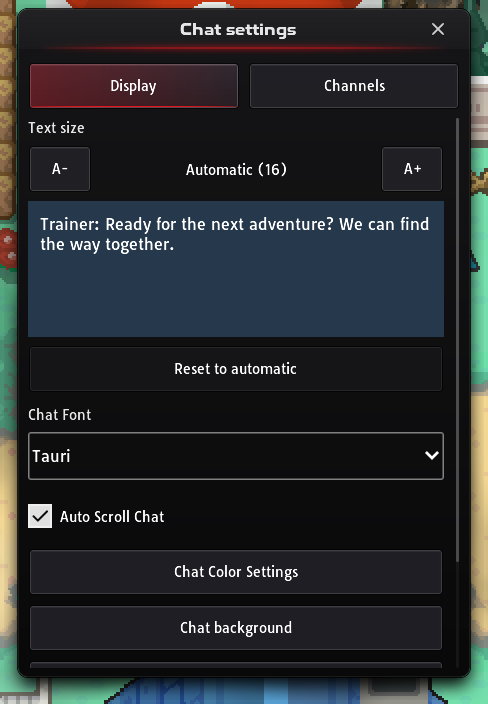
The player menu
Section titled “The player menu”The player menu lists what you can do with another player. It opens beside the name or message you pressed, and shows the player’s name at the top. A row you can’t use right now is greyed, with the reason beside it, such as Offline. Click outside the menu, or press Esc, to close it.
| Where | How to open it | What it has |
|---|---|---|
| Chat | Right-click or long-press a player’s message | View Trainer Card, Whisper, Trade, Add Friend, Crew Invite and Block |
| Friends, Played lately | Click a player who isn’t your friend | Whisper, Add Friend and View Trainer Card |
| Friends, a profile’s mutual friends | Click a face | Show in Friends, Whisper and View Trainer Card |
| Friends, a friend’s profile | Press … | Send Mail, Remove Friend and Block |
| Leaderboards | Click a player’s row | View Trainer Card, Whisper and Add Friend |
On a phone, tap where a computer clicks. Trade from chat only works with a player on your map. Clicking a trainer on the map still opens its own round menu, with challenges, Trainer Card, Trade, Whisper and Add Friend; see the quick menus.
The Crew Hall has no player menu. Press a member on its Members page to get Trainer Card and Whisper buttons, and, for the leader and commanders, the controls to manage them. See the Crew Hall.
Whispering
Section titled “Whispering”A whisper (private message) only goes to one player, and shows in pink by default. Start one in any of these ways:
- Type
/w namein chat and press Enter, then type your message. - Choose Whisper in the player menu, for example on one of their messages in chat.
- Click the player’s trainer on the map and choose Whisper.
- Open a friend’s profile in Friends and press Message.
To go back to public chat, press Esc while typing or switch to another tab. You can’t whisper someone who is offline, or someone who has blocked you or whom you have blocked. To reach a player who is offline, send them mail.
Friends
Section titled “Friends”Open Friends with the Friends button in the main menu, or press O. The title counts your friends and how many are online. There is no limit to how many friends you can have.
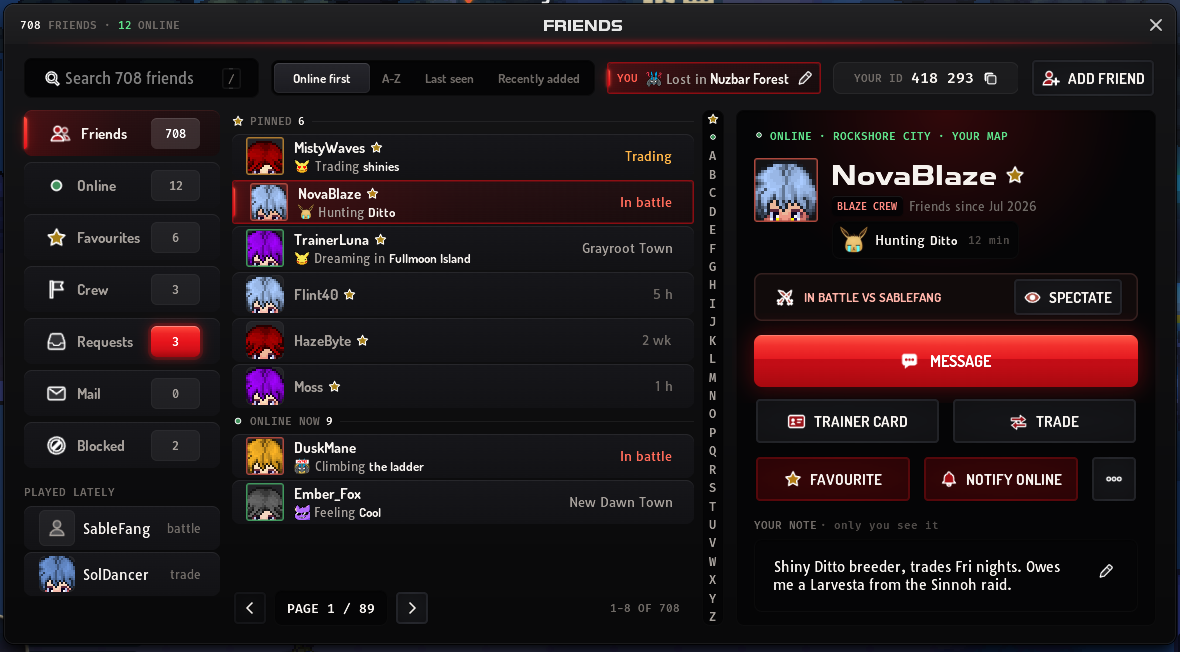
| Part | What it does |
|---|---|
| Toolbar (top) | The search box, the sorts, your status, Your ID and Add Friend. Press / to jump to the search. |
| Tabs (left) | Friends, Online, Favourites and Crew filter the list. Requests, Mail and Blocked open pages of their own. Each tab shows a count. |
| Played lately (under the tabs) | The last 5 players you battled, traded with or shared a wild battle with in a Co-op Duo. Click one for their profile, or for a menu if they aren’t your friend. |
| List (middle) | Your friends, a page at a time. The letter strip beside it jumps to a letter. |
| Profile (right) | The friend you picked. See friend profiles. |
The search finds friends by name and by your note about them. The sorts are:
- Online first: your favourites under Pinned, then the friends under Online now, then everyone else under their first letter, A to Z
- A-Z: by name, under each letter
- Last seen: Online now first, then Offline, most recently seen first
- Recently added: your newest friends first
On a phone or tablet the tabs are icons down the side, and one inbox button holds Requests, Mail and Blocked. Played lately and the toolbar only show on a computer. On a phone held upright, a friend’s profile opens over the list, with a back button.
Adding friends
Section titled “Adding friends”Your friend has to accept your request. Send one in any of these ways:
- From chat: right-click (long-press) one of their messages and choose Add Friend.
- On the map: click their trainer and choose Add Friend.
- In Friends: press Add Friend and type their name or PBO ID. They don’t have to be online: they see your request when they next log in.
- From Played lately: click a player who isn’t your friend yet and choose Add Friend.
You can have up to 50 sent requests waiting for an answer at once.
Your PBO ID
Section titled “Your PBO ID”Your PBO ID is your account’s number. Other players can type it instead of your name to add you as a friend or to mail you. You find it in two places:
- Your trainer card: under your name. Click it (tap on a phone) to copy it.
- Friends, on a computer: Your ID in the toolbar, with a button that copies it.
The game shows the ID in groups of three digits. When you type one, leave out the spaces, or paste a copied ID. Other players’ cards show their PBO ID too.
Friend requests
Section titled “Friend requests”When someone sends you a request, a window asks you to Accept or Decline. Close it to answer later. If requests came while you were offline, chat tells you how many are waiting when you log in.
The Requests page lists the requests you Received, with Accept and Decline, and the ones you Sent, with Cancel. A request nobody answers is dropped after 30 days.
Friend profiles
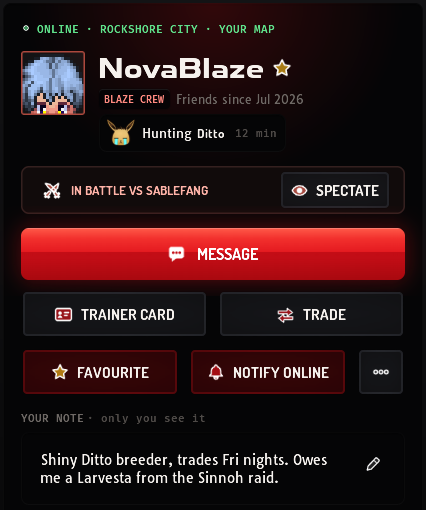
Section titled “Friend profiles”Click a friend in the list to see their profile:
- Where they are: online and on which map, or when they were last seen
- Their trainer in their current outfit, with their name, crew and the date you became friends
- Their status, while they are online
- A battle or a trade, if they are in one, with Spectate when you can watch the battle
A friend who turned off Show my team and location on my Trainer Card in Settings shows as online without their map, unless you are on the same map.
The buttons under them:
| Button | What it does |
|---|---|
| Message | Whispers them. For a friend who is offline it is Send mail instead, which mails them. |
| Trainer Card | Opens their trainer card, while they are online. |
| Trade | Sends a trade request. Only when you are on the same map. |
| Favourite | Adds them to Favourites and pins them at the top of the list. |
| Notify online | Chat tells you when they come online. It is on for every new friend. |
| … | Send Mail, Remove Friend and Block. Removing and blocking ask first. |
Notes and mutual friends
Section titled “Notes and mutual friends”Under the buttons, Your note holds a private note about the friend, up to 100 characters. Only you see it. Click the pencil to change it; on a phone, use Edit Note in the … menu.
At the bottom of the profile are the friends you share. Hover over (or long-press) a face to see the name. Click one for Show in Friends, Whisper or View Trainer Card, and press + with the number to see them all.
Your status
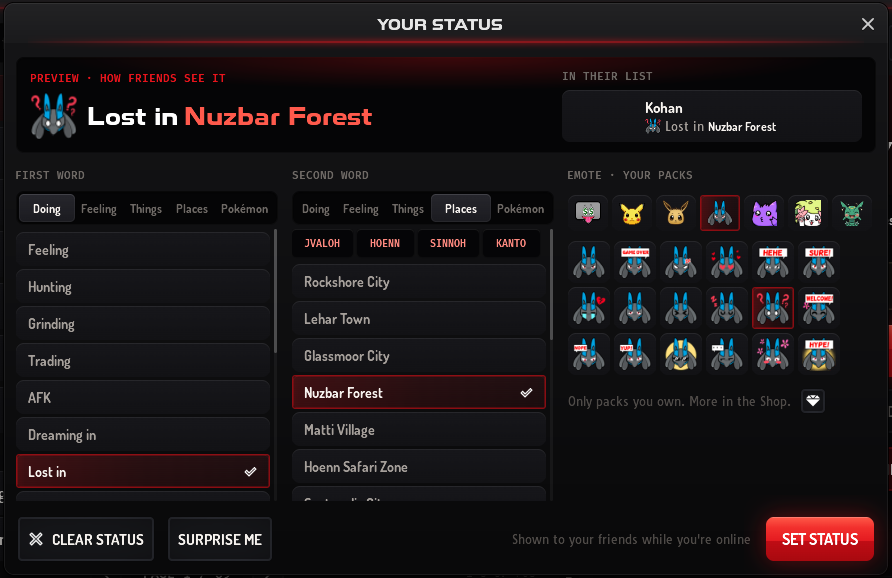
Section titled “Your status”A status tells your friends what you are up to, in two words and an emote, such as “Fishing” and “Lake Valor”.
- Open the picker. On a computer, click your status in the Friends toolbar: it says Set a status until you have one. On a phone, tap the first row of your list.
- Pick two words. Each column has the same categories: Doing, Feeling, Things, Places and Pokémon. Region buttons narrow down Places. The two words can’t be the same.
- Pick an emote. The emotes come from your mood packs, and everyone has the default pack. On a computer, the gem button under the emotes opens the shop that sells more.
- Press Set status. The preview shows how friends see it. Surprise me picks for you, and Clear status removes your status.
Your friends see your status while you are online: in their list, and on your profile with how long ago you set it. Players who aren’t your friends don’t see it.
Mail lets you write to any player, friend or not, by name or PBO ID. They don’t have to be online: your mail waits for them until they log in. Mail is text only; you can’t send items or Pokémon with it.
Open the Mail tab in Friends. On a phone, tap the inbox button, then Mail.
Writing mail
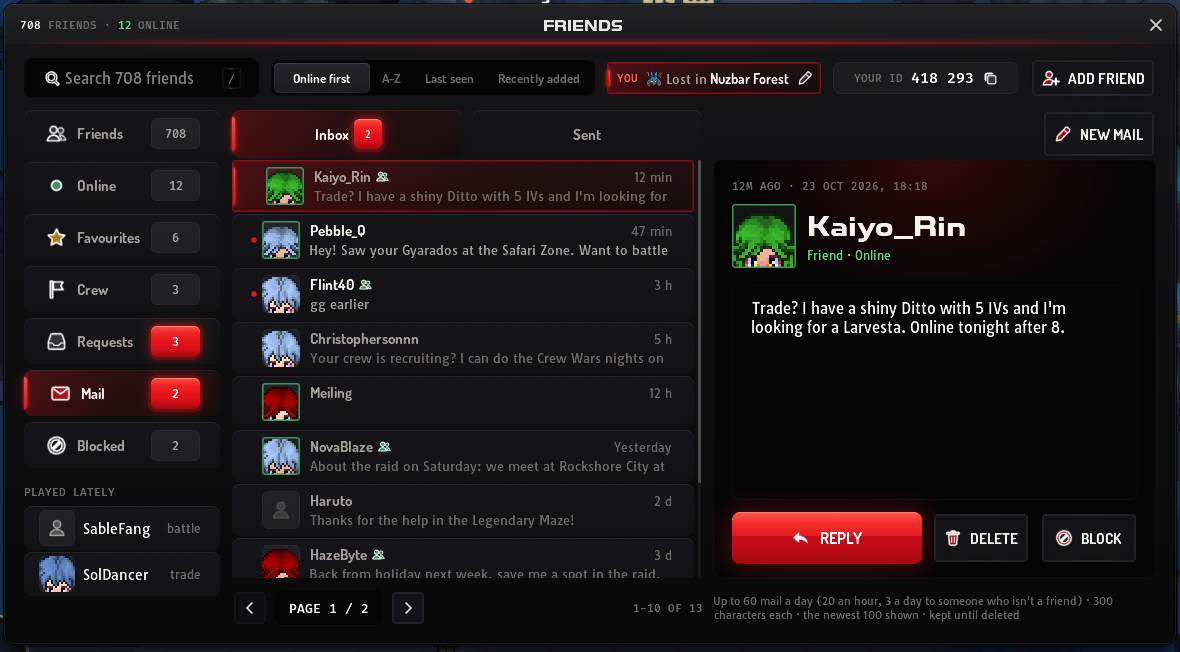
Section titled “Writing mail”- Press New mail. It sits over your inbox. On a phone, it is the pen button.
- Fill in To. Type the player’s name or PBO ID.
- Write your mail. You have 300 characters. The counter under the box shows how many you have used.
- Press Send. Chat confirms the mail was sent, or says why it wasn’t.
These buttons start a mail with To filled in for you:
- Reply on a mail in your inbox
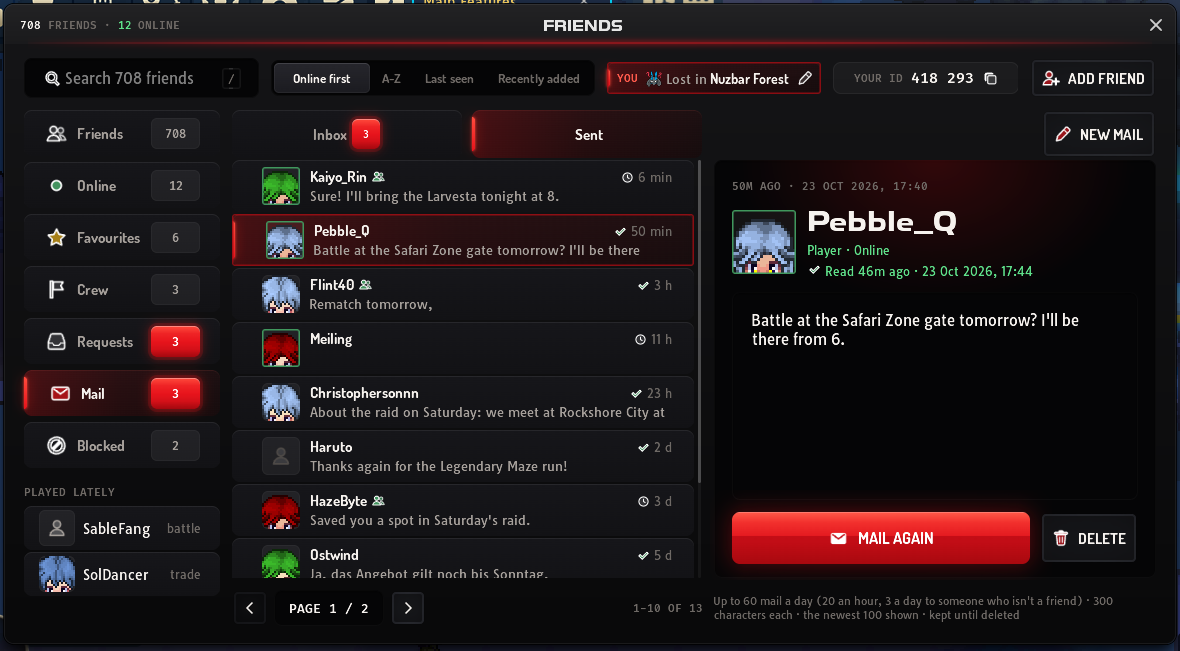
- Mail again on a mail in your Sent list
- Send mail on the profile of a friend who is offline, and Send Mail in a friend’s … menu
You can’t mail yourself, a player you blocked (unblock them first) or a player who blocked you.
Your inbox
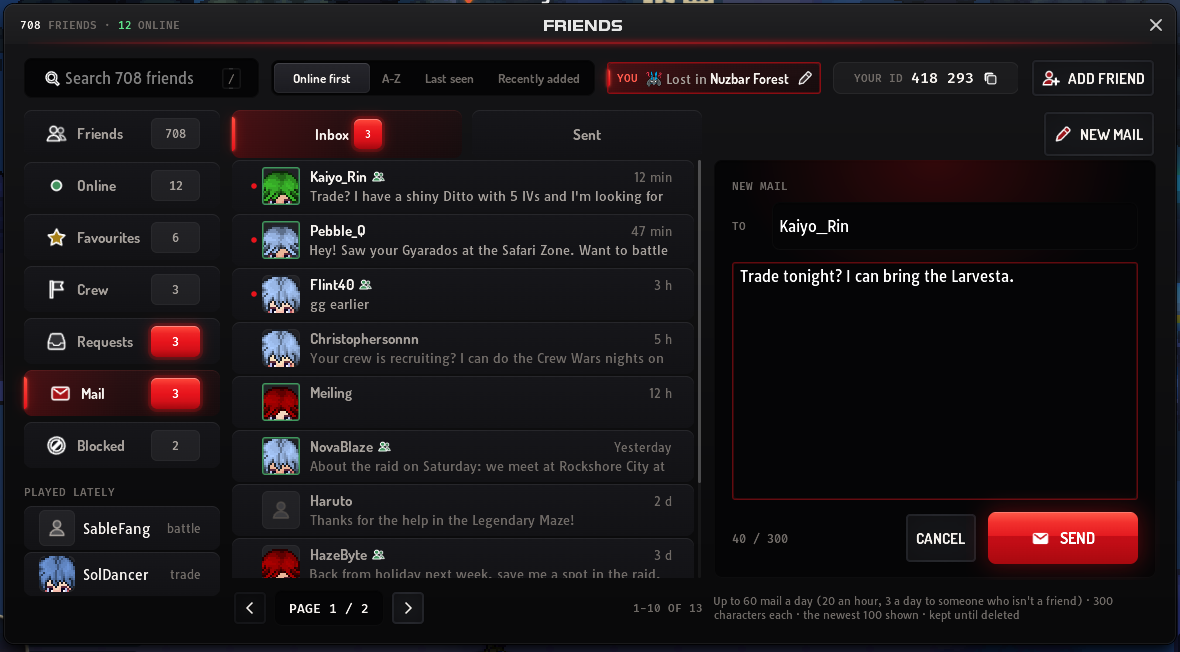
Section titled “Your inbox”- Unread mail has a dot. Each row shows the sender, whether they are your friend, when the mail came and its first words.
- Open a mail to read it. It counts as read for the sender from then on. Reply answers it, Delete removes it from your inbox and Block blocks the sender.
- New mail while you are online shows in chat as “New mail from” and the sender’s name. When you log in with unread mail, chat says how many are waiting.
- The Friends button in the main menu shows how many unread mails you have. If you folded the main menu away, its arrow shows a red dot instead.
Sent mail and read receipts
Section titled “Sent mail and read receipts”Switch from Inbox to Sent to see the mail you sent. A green tick before the time means the player has opened it; a clock means they haven’t yet. Open a sent mail to see when it was read, or Not read yet.
- Mail again writes the same player a new mail.
- Delete removes the mail from your Sent list only. The player keeps their copy.
Mail can’t be changed or taken back once it is sent.
Mail limits
Section titled “Mail limits”The game shows these limits under the mail you are reading or writing.
| Limit | Amount |
|---|---|
| Mail you can send | 60 a day, and 20 an hour |
| Mail to one player who isn’t your friend | 3 a day |
| Length of a mail | 300 characters |
| Mail shown in your inbox, and in Sent | The newest 100. Older mail shows once you delete newer mail. |
| How long mail is kept | Until you delete it |
| New accounts | Can’t send mail until they are allowed to chat |
Blocking players
Section titled “Blocking players”Blocking works both ways: neither of you can whisper the other, and you stop seeing each other’s messages in chat channels. A player you block also can’t send you friend requests or mail, and if you were friends, they are removed. Staff can’t be blocked.
- To block: choose Block on their messages in chat, in a friend’s … menu or on a mail they sent you. Or open the Blocked page in Friends, press Block a player and type their name or PBO ID.
- To unblock: press Unblock next to them on the Blocked page.
You can block up to 500 players. Mail from a player you block leaves your inbox, and your mail to them leaves your Sent list; both come back if you unblock them.
Other players’ trainer cards
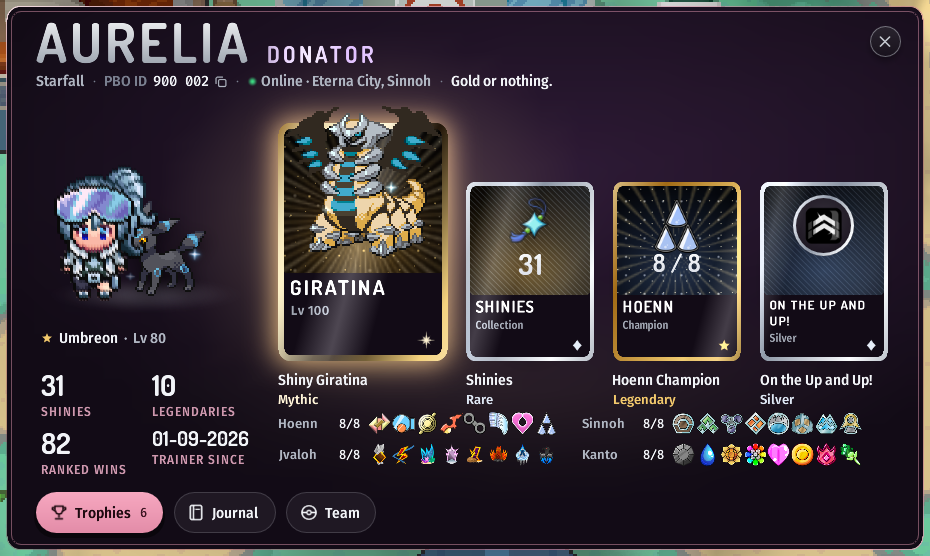
Section titled “Other players’ trainer cards”You can open any online player’s trainer card, wherever they are, not only on your map:
- On the map: click their trainer and choose Trainer Card.
- From a player menu: choose View Trainer Card in chat, in Friends or on a leaderboard. See the player menu.
- On a friend’s profile: press Trainer Card.
- In the Crew Hall: press a member on Members, then Trainer Card.
Only the cards of players who are online open. For anyone else the game says they aren’t online, and Friends and the Crew Hall grey out the button. If you open many cards in a few seconds, the game asks you to wait a moment.
Each player decides what visitors see: whether their team and location show, and whether their stats and journal do. What a card holds, and how to set up your own, is in the trainer card.
Showing your Pokémon in chat
Section titled “Showing your Pokémon in chat”- Drag a Pokémon from your party or PC onto the chat messages (not the box where you type) to post it in the channel you have open.
- Type
/teamto post your whole party at once. Use this instead of posting Pokémon one by one, so you don’t flood the chat. - When you catch something, open the catch message in chat to see the Pokémon.
Chat channels
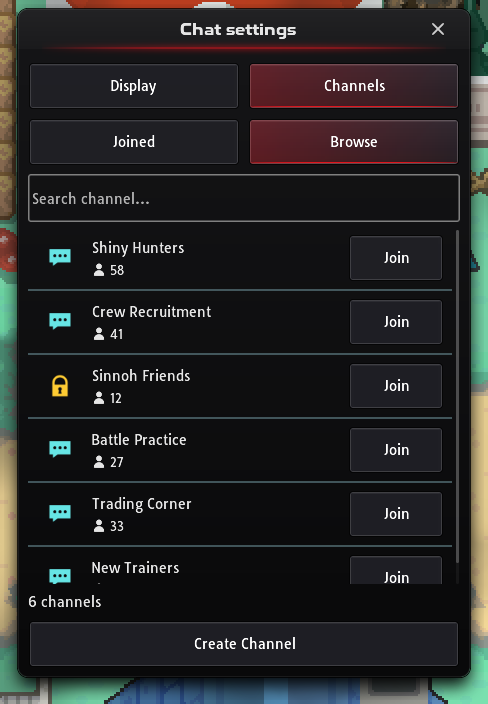
Section titled “Chat channels”Besides the standard channels you can join channels made by other players, or make your own. Open the chat gear and go to Channels.
Joining a channel
Section titled “Joining a channel”- Browse the channels. In Channels, switch from Joined to Browse.
- Join one. Search for the channel and choose Join. Private channels ask for their 4-character passcode.
- Choose where it shows. Back in Joined, tick Tab to give the channel its own tab, and Global to see its messages in the English tab as well.
- Apply. Choose Apply Changes. At least one tab must stay selected.
- Crew chat: your crew’s channel is joined for you when you join a crew. Type
/crewto switch to it. - Limit: you can be in up to 10 channels; the Join button tells you when you have reached the limit.
- Talk from any tab: type
/c channel name.
Creating a channel
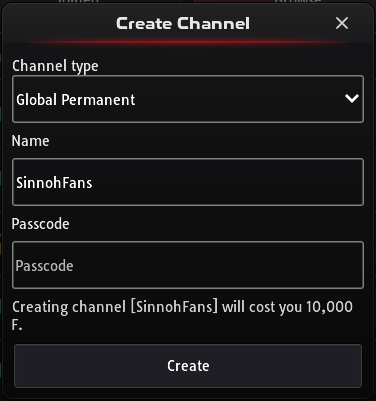
Section titled “Creating a channel”You need at least 3 badges (from any regions) to create channels, and you can own up to 5.
| Type | Who can join | How long it lasts | Cost (F) |
|---|---|---|---|
| Global Temporary | Anyone | 10 minutes | Free |
| Global Permanent | Anyone | Until deleted | 10,000 |
| Private Permanent | Anyone with the passcode | Until deleted | 10,000 |
Channel names must be 4–13 characters, and a private channel’s passcode exactly 4 characters. Names must follow the rules like any other chat.
Running your channel
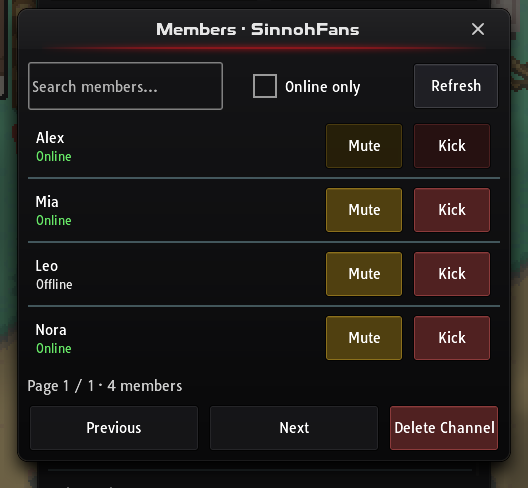
Section titled “Running your channel”As the channel’s owner you can open its Members list from Channels, then Mute members for a number of hours, Kick them, or Delete Channel.
Crew chat works differently: it can’t be deleted or left, and nobody can be kicked from it.
Trading with other players
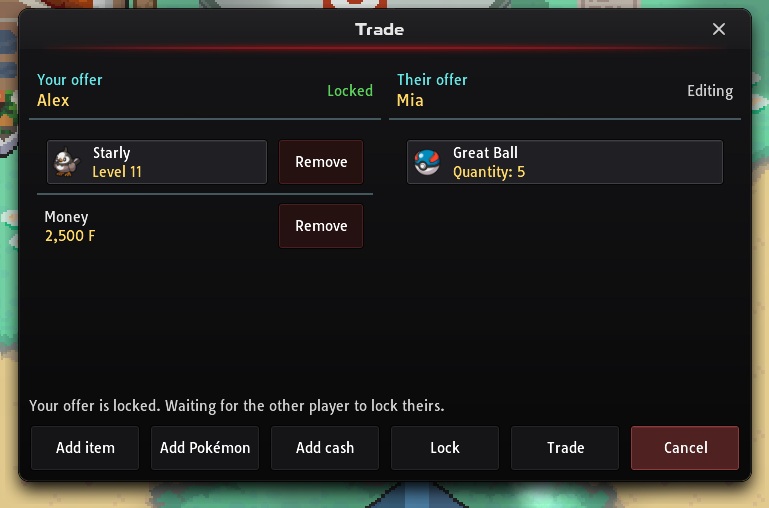
Section titled “Trading with other players”You can trade Pokémon, items and cash directly with another player.
- Meet up. Stand on the same map as the other player.
- Send a request. Click their trainer and choose Trade, choose Trade from one of their messages in chat, or type
/trade name. They have to accept. - Build your offer. In the trade window, use Add Pokémon, Add item and Add cash. Tap anything in either offer to inspect it.
- Lock and confirm. When your offer is ready, lock it. Once both offers are locked, check them carefully, then press Trade to confirm.
A trade is refused if:
- the Pokémon is above the level cap: 5 + 7 × your badges in the region it was caught in, for both players, with no cap once you are Champion of that region (see the trade level cap)
- it is holding an item, unless that item is needed for a trade evolution
- it would leave you with no Pokémon in your party, or the receiver has no free party slot
- it is a Pokémon that can’t be traded
Chat commands
Section titled “Chat commands”Type these in chat and press Enter. Replace the words in brackets with your own (without the brackets).
Talking and trading
Section titled “Talking and trading”| Command | What it does |
|---|---|
/help |
Lists the commands. |
/w [name] |
Whispers that player. |
/c [channel] |
Talks in that channel. |
/crew |
Switches to your crew chat. |
/trade [name] |
Sends a trade request to a player on your map. |
/team |
Posts your whole party in chat. |
/clear |
Clears your chat window. |
Getting around and connection
Section titled “Getting around and connection”| Command | What it does |
|---|---|
/walk |
Takes off your mount, bicycle or Running Shoes. |
/sync |
Re-syncs your position with the server if you are stuck in a doorway. |
/ping |
Checks your connection to the server. |
/online |
Shows how many players are online right now. |
Pokémon and battles
Section titled “Pokémon and battles”| Command | What it does |
|---|---|
/champions |
Lists the Champions you can rematch now, and how long until the others are ready. |
/evolutions [Pokémon] |
Shows how that Pokémon evolves. |
/ability [Pokémon] |
Lists that Pokémon’s abilities, including its hidden ability. |
/weak [Pokémon] |
Lists that Pokémon’s weaknesses, resistances and immunities. |
/watch [code] |
Watches a battle someone shared with you. |
Type Pokémon names the way the game spells them, for example /evolutions Eevee.
Windows and shortcuts
Section titled “Windows and shortcuts”| Command | What it does |
|---|---|
/priest_exp |
Opens the Ho-Oh priest’s donation window. |
/priest_fish |
Opens the fishing priest’s donation window. |
/claim_all_gp |
Claims all the Game Pass rewards you have earned. |
/meminfo |
Shows how much membership time you have left. |
/donate |
Opens the Donator Store. |
/news |
Opens the news. |
/guide and /rules |
Open the guides section of the PBO forums and the rules thread in your browser. |