
Trade House
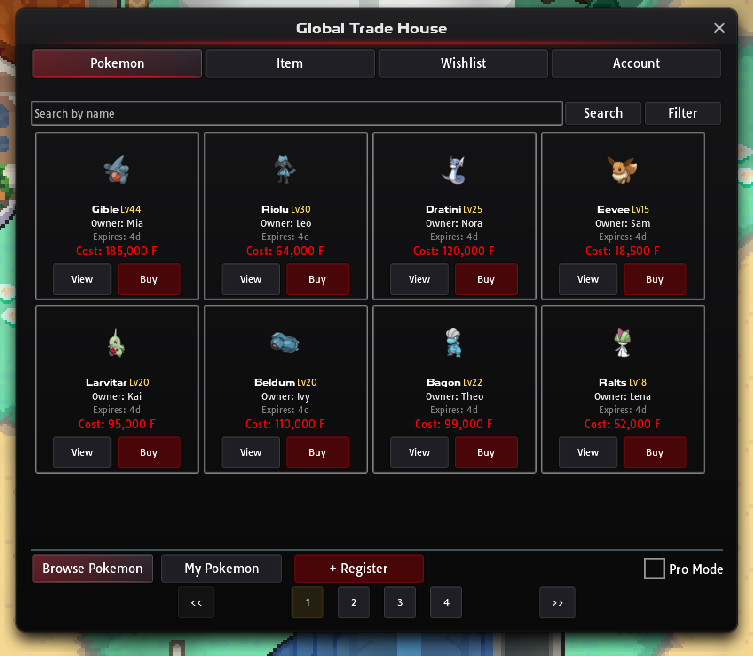
The Trade House is PBO’s global market: you list a Pokémon or an item at your price, and any player can buy it while you are offline. You can also post a wishlist for an item and let other players sell into it.
For swapping directly with someone on your map, see trading with other players.
The window at a glance
Section titled “The window at a glance”| Tab | What it does |
|---|---|
| Pokemon | Browse Pokemon to buy, My Pokemon to see and manage your own listings |
| Item | Browse Items and My Items, the same for items. Tick Pro Mode to see listings as compact rows. |
| Wishlist | Browse Wishlists to sell to other players’ requests, My Wishlists for your own |
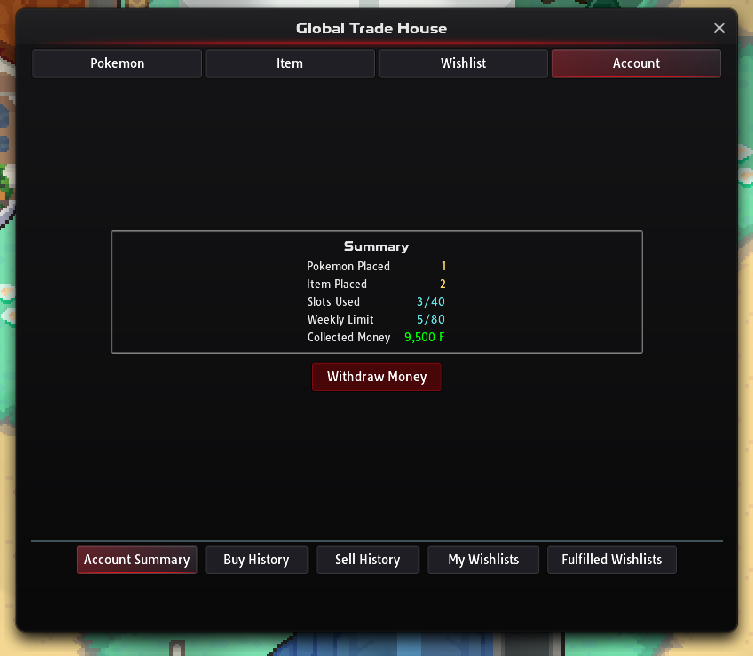
| Account | Your summary (slots used, weekly limit, membership, money collected), your buy and sell history, and the history of your wishlists |
The search bar and Filter button narrow the list:
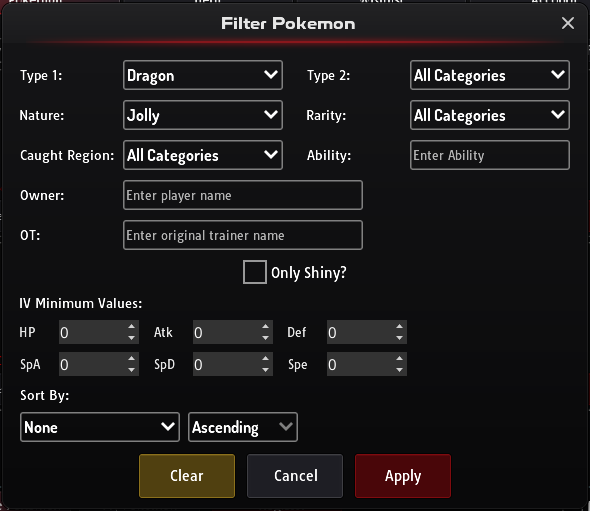
- Pokémon: type, nature, ability, minimum IVs, rarity, shiny, seller and the region it was caught in.
- Items: name, category, price and quantity.
Buying
Section titled “Buying”- Find a listing. Look on Browse Pokemon or Browse Items and press Buy.
- Confirm. Check the confirmation (name, quantity and price) and accept. For an item, it also shows the usual price and warns you when this listing costs more than most sales.
- Get your purchase. A bought Pokémon goes straight into your party. An item goes into your Bag.
- You pay with the money in your hand. Money in an ATM or a crew bank doesn’t count.
- To buy a Pokémon, you need a free party slot.
- You can only buy Pokémon up to level 5 + 7 × your badges in the region you are standing in. Once you are Champion of that region, there is no limit.
- A Pokémon you buy doesn’t keep its old caught region: it becomes native to the region you are standing in.
| Your badges in this region | Highest level you can buy |
|---|---|
| 0 | 5 |
| 4 | 33 |
| 8 | 61 |
| Champion | Any |
Selling
Section titled “Selling”- Register a listing. Open My Pokemon or My Items and press Register.
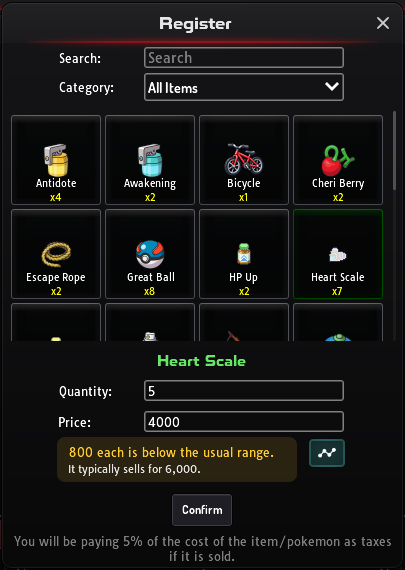
- Set it up. Pick the Pokémon (from your party) or the item, enter the quantity for items, and set your price. For an item, the line under the price shows its usual price and warns you when yours is below most sales.
- Place it. Press Place. The listing goes live straight away.
- Wait for a sale. When it sells, you get a message, even if you were offline (it arrives the next time you log in).
- Withdraw the money. It waits in your Trade House account until you open Account and press Withdraw Money.
The 5% fee
Section titled “The 5% fee”The Trade House keeps 5% of the price when something sells. List a Pokémon for 10,000 F and you collect 9,500 F. Nothing is charged for listings that don’t sell.
What you can list
Section titled “What you can list”- Pokémon must be in your party, must not be your only Pokémon, can’t hold an item, and must be within the same level cap as for buying (5 + 7 × your badges in this region, or any level once you are Champion here).
- Some Pokémon can never be traded, including the starters you receive from a professor.
- Items are fine unless they are trade-banned. Most earned currencies are banned, such as
 Blaze Coin,
  Dynite ore,
  Crew Wars Token,
  Ranked Battle Token,
  Battle Token,
  Goodwill Token,
  Casino Token and
  Daycare Token. The full list of which currencies can be traded is on shops and currencies.
Limits
Section titled “Limits”| Without membership | With PBO Membership | |
|---|---|---|
| Listings at the same time | 40 | 80 |
| New listings per week | 80 | 160 |
| How long a listing stays up | 7 days | 14 days |
| Wishlists at the same time | 10 | 20 |
| How long a wishlist stays up | 7 days | 14 days |
- Weekly reset: the weekly count resets every Monday at 00:00 UTC.
- Expired listings: they stay in My Pokemon or My Items. You can Re-Add one, which counts as a new listing, or remove it to take the Pokémon or item back.
- Members’ listings: they are tinted gold so they stand out. See PBO Membership.
Your trade history
Section titled “Your trade history”Buy History and Sell History under Account go back through every trade you have made, newest first, 50 to a page. Each row shows the date, the Pokémon or item, the price, the quantity and the other player.
- Change page: use the arrows under the tabs. Between them, the window shows where you are, such as “Page 2 of 7”.
- Totals: the box under the list counts your whole history, not just the page: Pokémon and items bought or sold, the money spent or made, and your most expensive trade.
- Wishlists: My Wishlists and Fulfilled Wishlists have their own pages of history.
Wishlists
Section titled “Wishlists”A wishlist is a standing order: “I’ll buy up to this many of this item at this price each.” Other players see it under Browse Wishlists and can sell straight into it.
Making a wishlist
Section titled “Making a wishlist”- Create it. Open Wishlist, then My Wishlists, and press Create Wishlist.
- Set the order. Choose the item, the quantity you want and the most you’ll pay per item. The window shows the total budget, and warns you when your offer is below what requests for that item have recently been filled at.
- Confirm. The whole budget is taken from your money now and held for the wishlist.
- Receive the items. When someone fills part or all of it, the items arrive in your Bag, even if you are offline.
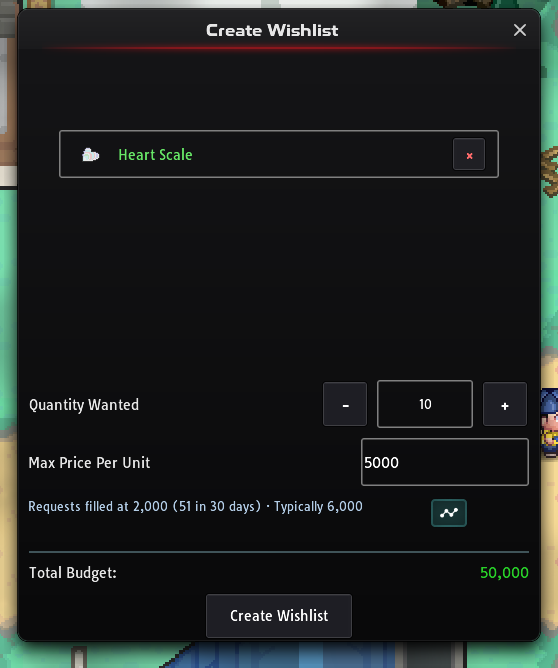
- You can have one active wishlist per item. To want more, edit its quantity in My Wishlists.
- Cancelling refunds whatever budget is left. After cancelling you have to wait a moment before wishlisting the same item again, and the wait grows if you keep cancelling.
- The budget for one wishlist can’t go above 100,000,000 F, and trade-banned items can’t be wishlisted.
Selling to a wishlist
Section titled “Selling to a wishlist”- Browse requests. Open Browse Wishlists. In Filter, tick Only show items I can fulfill to see only the requests you can answer from your Bag.
- Pick one. Press Sell on a request. It is greyed out when you don’t have the item.
- Confirm the sale. Choose how many to sell and press Confirm Sale. The window warns you when the request pays less than most sales. You are paid at once, minus the same 5% fee.
Checking prices
Section titled “Checking prices”For items, the Trade House tells you what an item usually sells for, worked out from what players have recently paid each other for it. Prices are always per item, so a stack of 5 listed for 5,000 F counts as 1,000 F each. Pokémon don’t have a usual price.
The price window
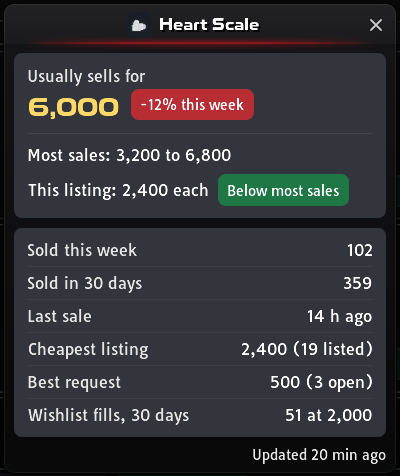
Section titled “The price window”Press the chart button on an item listing to open its price window. It shows:
- Usually sells for: the middle price of the item’s sales in the last 7 days. Half the sales cost less and half cost more. If none sold this week, it uses the last 30 days instead.
- This week: a tag beside the price says whether it went up, went down or stayed steady this week, or that none sold.
- Most sales: the range that most sales of the last 30 days fell in.
- Your price: where the listing or offer you are looking at sits: Below most sales, Within most sales or Above most sales.
- Details: how many sold this week and in 30 days, when the last sale was, the cheapest listing, the best wishlist request, and what wishlists were filled at in the last 30 days.
The bottom of the window says how old the numbers are, such as “Updated 5 min ago”.
Where you see it
Section titled “Where you see it”| Where | What you see |
|---|---|
| Browse Items (cards and Pro Mode rows) | The chart button beside Buy. Clicking or tapping anywhere else on the listing, except its buttons, opens the window too. |
| Browse Wishlists | The chart button beside Sell. A request that pays less than most sales shows “Usually sells for” and the usual price, in amber. |
| Registering an item, Create Wishlist and filling a wishlist | A line under the price with the usual price or a warning, and the chart button. Click or tap the line to open the window. |
| The buy confirmation for an item | The same line, without the button, so you see the usual price before you pay |
| My Items and My Wishlists | Nothing |
The amber warnings show when:
- the item you are listing, or the request you are filling, pays below most sales
- the wishlist you are creating offers less than requests for that item have recently been filled at
- the listing you are about to buy costs more than most sales
When there is no usual price
Section titled “When there is no usual price”| The window says | Why |
|---|---|
| No recent sales | Nobody has sold the item recently, or it has never been traded. The cheapest listing and best request still show if there are any. |
| Fetching price… | The numbers are on their way. |
| Unavailable right now | The game couldn’t get the numbers. Close the window and try again in a minute. |
Comparing listings yourself
Section titled “Comparing listings yourself”The usual price is a guide. To see what players are asking and offering right now:
- Listings: search for the Pokémon or item on Browse Pokemon or Browse Items. In Filter, sort by Price, Ascending, to see the cheapest first.
- Like for like: for Pokémon, set the same nature, minimum IVs, rarity or shiny in the filter, so you only compare similar Pokémon.
- Wishlists: Browse Wishlists shows the most each buyer will pay per item. Sort by Price (High to Low) to see the best offer.
- Your own trades: your trade history lists what you bought and sold, and for how much.
- The Item Buyer: for the items it buys, the Item Buyer pays a fixed price. Listing such an item for less than that loses you money.